
Who this is for and what it does
People at a client organization who need someone else in a video call, for example a family member or a colleague outside Connexus. A guest joins from a link in a browser and does not need a Connexus account.
Before you start
Inviting and removing guests is for your organization's Client Admins. If you cannot add a guest, ask your Client Admin, or share the guest link.
Have the guest's email address, or their phone number with the country code.
Steps
Before the call
Open the appointment. Under Participants, select Add Participants.
On Guests, enter the Email address and, if you like, a Display Name. Select Add. The guest gets an email with a link to join.
To add a colleague who has a Connexus login, open Users instead and pick them from Select client users to add.... Each pick is added straight away.
To share a link instead, under Guest Join Link select Generate link, then Copy link.
During the call
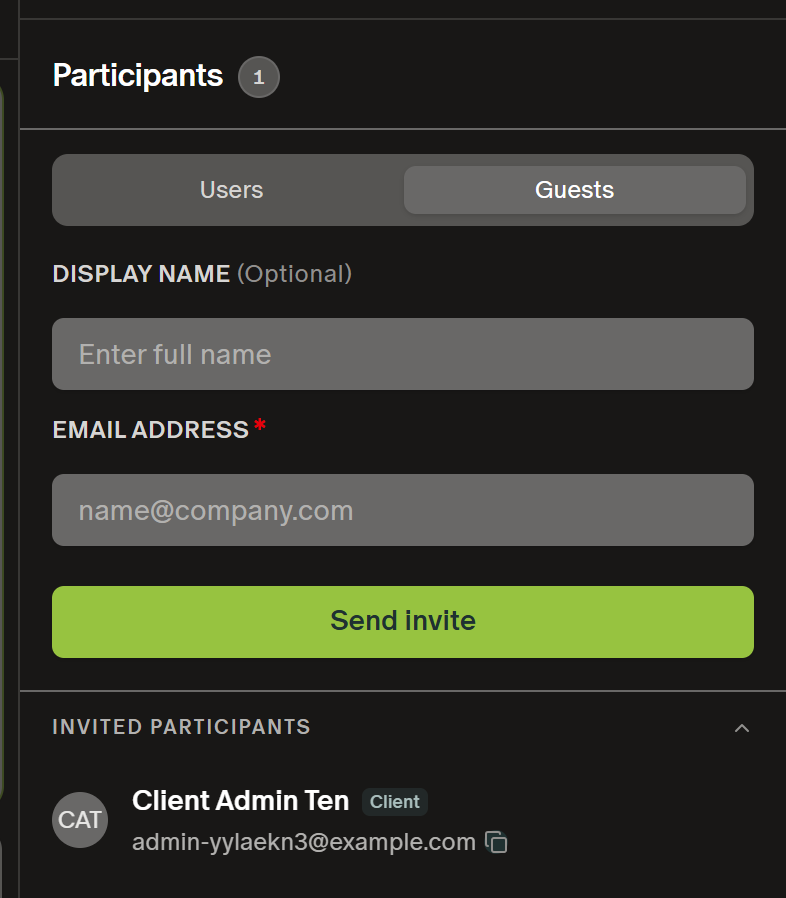
Select Participants. On Guests, enter the Email address, then Send invite. On a sign language call, tick This guest is the Deaf consumer if they are.
Or select Link to see the guest link. Select Copy link and send it. Anyone with the link can join as a guest.
Or select Dial, enter the phone number under Number and select Call. The person joins by phone.
What you will see
After an invite, a message reads "Participant added and email invite sent". After a dial, "Participant called, waiting for them to answer...".
On a sign language call, you and your guests see the Deaf consumer and the interpreter who is interpreting, never the rest of the interpreting team. When interpreters change, you hear a chime and "Your interpreter is changing" covers the interpreter's picture, naming who will continue the session when it can.
To stop a link working, select Generate a new link during the call, or Regenerate on the appointment's page. Share the new link with anyone who still needs it.
To take someone out of the call, open the menu on their video tile and select Remove from call, then Remove. To stop an invited guest joining before the call, select Revoke access beside them on Manage Participants.
Things that most often look wrong, and why:
"Failed to add participant. Please try again." Check the email address. If it keeps failing, ask your Client Admin to add the guest.
There is no Dial button. Dial is available on video calls for Client Admins and people who book calls.
The guest cannot join with an old link. The link was replaced. Send them the new one.
Available since March 2026. Guest link and Dial panels since Release 09.21.2026. Updated in Release 10.19.2026. Updated in Release 11.18.2026.
Last updated 18 November 2026