
Who this is for and what it does
Admins and Org Admins use this to give someone at their organization access to Connexus. An Administrator can book and manage appointments and manage users. A Requestor books and manages their own appointments. Org Admins add users to the client account they have selected under their name with Switch client accounts.
Before you start
Have the person's first and last name, email address, a US phone number and the service type they book most often.
Each email address can belong to only one Connexus account.
If the Add links read Enterprise Managed, your organization's users come from its own company directory. Add people there instead; they appear in Connexus when the directory syncs.
Steps
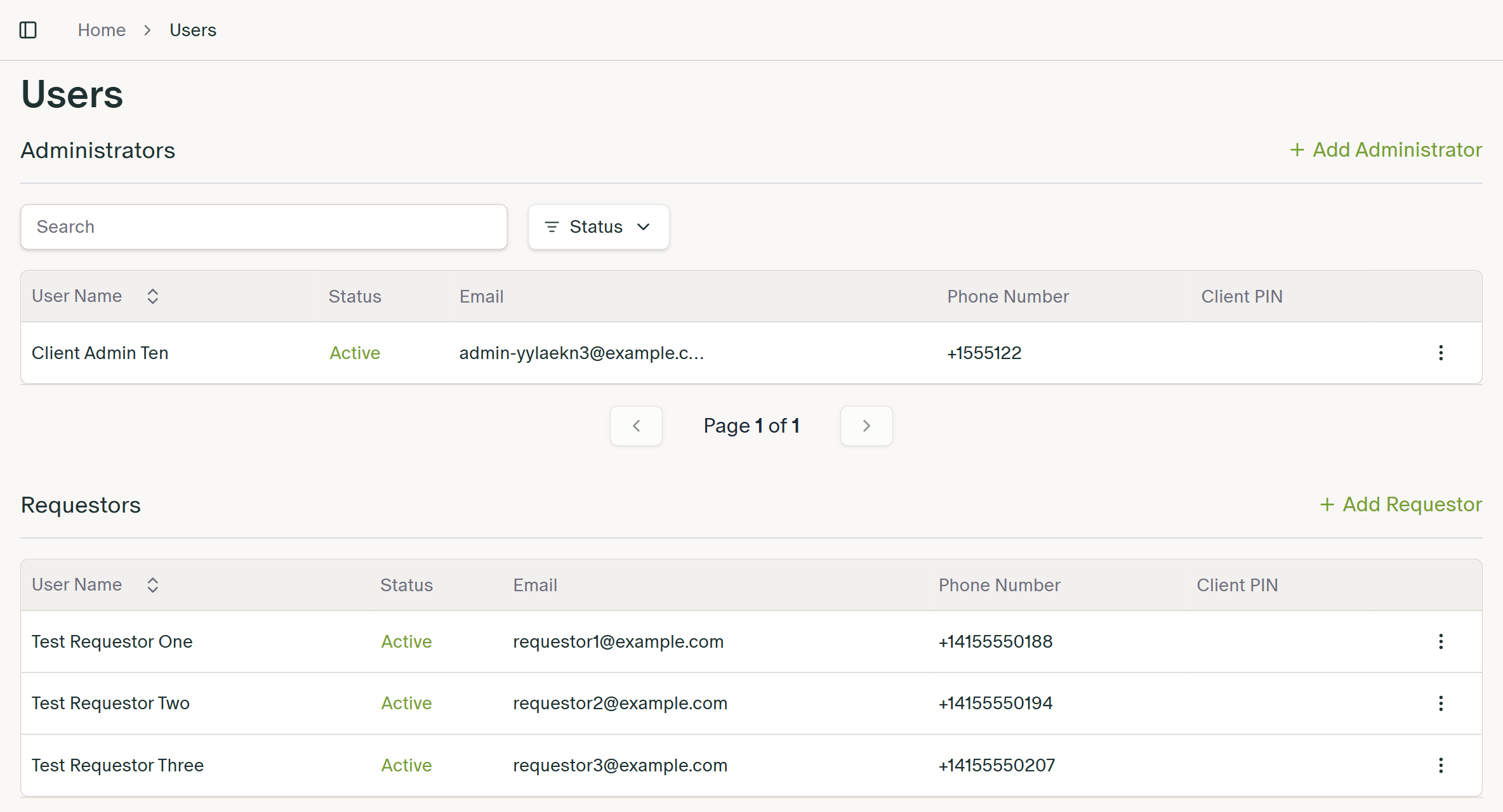
Select Users in the left menu.
Under Administrators, select Add Administrator, or under Requestors, select Add Requestor. The link you choose sets the person's role.
Under Personal Information, enter First Name, Last Name, Email and Phone. The phone number must be a US number, for example +15551234567.
Under Professional Information, choose the Default Service Type: Legal, Government, Medical, Community, Education or General. User Title and Native Language are optional.
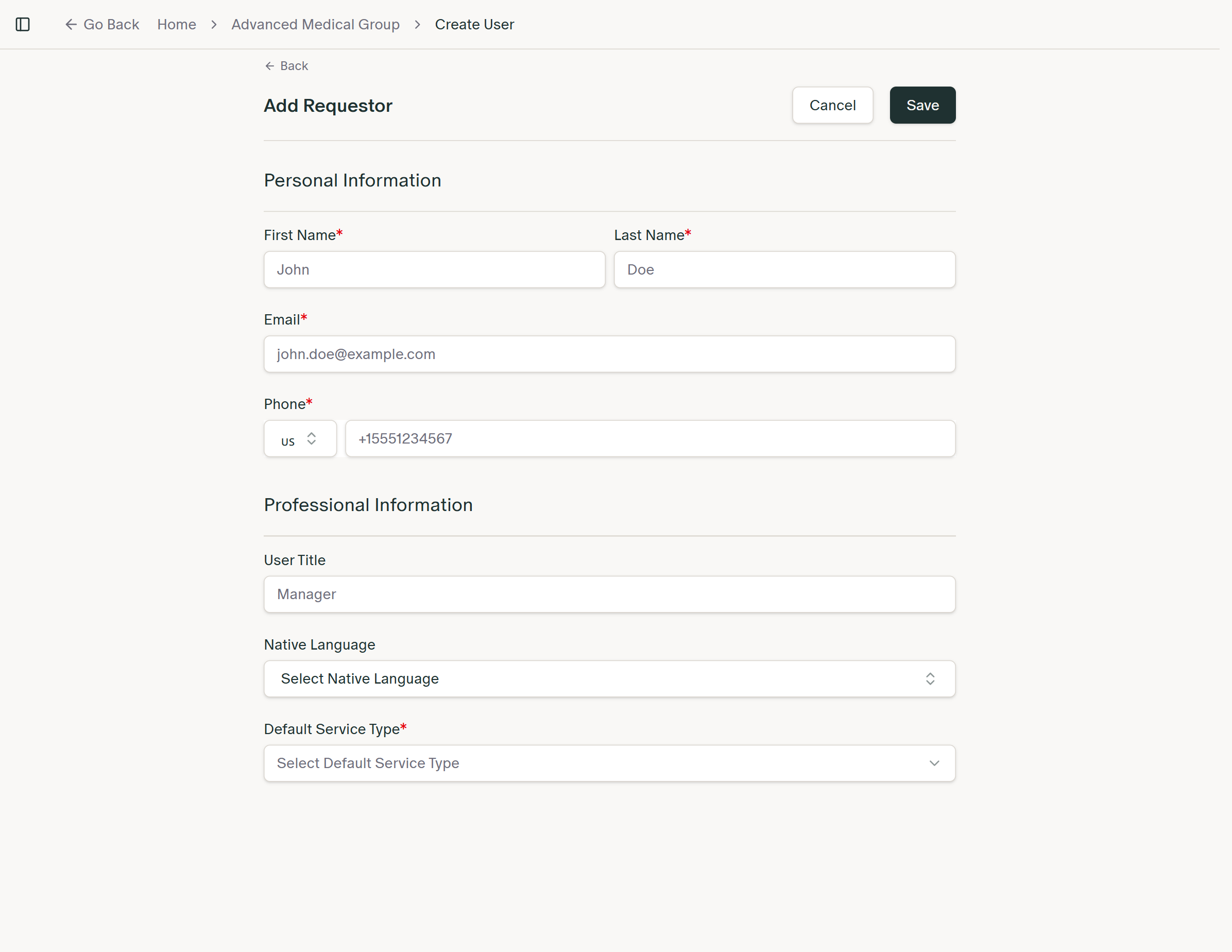
Select Save.
What you will see
A success message appears and you return to the Users page. The new person is listed with the status Pending until they accept their invitation. Connexus emails them "Welcome to Connexus!" if Piedmont Global has turned on welcome emails for your account; if not, send the invitation yourself with Resend Invitation, as below.
Things that most often look wrong, and why:
"User with this email already exists." That email address already has a Connexus account, possibly at another organization. Use a different address, or contact Piedmont Global with Submit a request.
"Required. Must be a valid US phone number." Enter the number as +1 followed by the 10 digits.
Save does nothing and a field shows a message in red. A required field, marked with a red asterisk, is empty or too long.
The person never received the invitation. Ask them to check spam or junk. An Admin can send it again: open the person with View User from the menu on their row, then select Resend Invitation and Send Invitation. You can resend up to 5 times a day, and once an hour, while the person is still Pending.
I need to add an Org Admin or Org User. These roles are added by Piedmont Global. Use Submit a request.
The person needs a different role. The role cannot be changed after the user is added. Contact Piedmont Global with Submit a request.
Available since March 2026. Updated in Release 11.20.2026.
Last updated 20 November 2026