
Who this is for and what it does
Anyone who books interpreters and would like the same interpreter as before, for example for a series of visits with one person.
Before you start
You can ask for an interpreter who has worked with your organization in the last 12 months.
Fill in the service, how the interpreter joins and the languages first. The list only shows interpreters who match them.
Steps
Open Appointments, select Create Appointment and fill in the appointment details.
Open Preferred Interpreter and pick the interpreter. Type in Search by Name to find them. You can pick one interpreter; picking another replaces your choice.
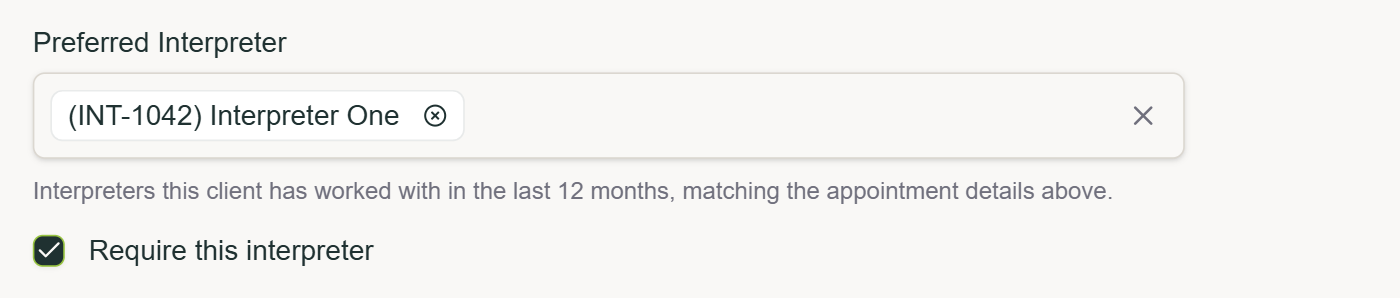
Tick Require this interpreter, which appears once you pick one, if the appointment should go to this interpreter only.
Select Submit.
What you will see
The appointment's page shows Preferred Interpreter with the name, and Required if you ticked it.
Without Require this interpreter, another interpreter can take the appointment if the one you asked for is not available. With it, Piedmont Global's scheduling team is alerted if that interpreter is not assigned. Either way, the interpreter still has to be free and accept.
To change the request after booking, contact Piedmont Global's scheduling team. Clone does not copy the request; pick the interpreter again.
Things that most often look wrong, and why:
The interpreter is not in the list. They have not worked with your organization in the last 12 months, or they do not match the service, delivery or languages you chose.
A different interpreter was assigned. You asked without Require this interpreter, and the interpreter you asked for was not available.
Available since Release 09.01.2026
Last updated 14 October 2026