
Who this is for and what it does
Requestors, Admins, Org Users and Org Admins use this to book an interpreter in advance for a phone call, a video call, an on-site visit or a meeting on your own video platform. For an interpreter right now, use an on-demand call instead; it is not booked from this form.
Before you start
Know the two languages, the date, the start and end time, and the time zone.
If you are an Org Admin, choose the location first: the appointment is booked for the location you are working for. See Switch between your organization's locations.
For an on-site appointment, have the full address, including the state or province.
For a meeting on your own platform, such as Zoom or Teams, have the meeting invitation or link ready.
Steps
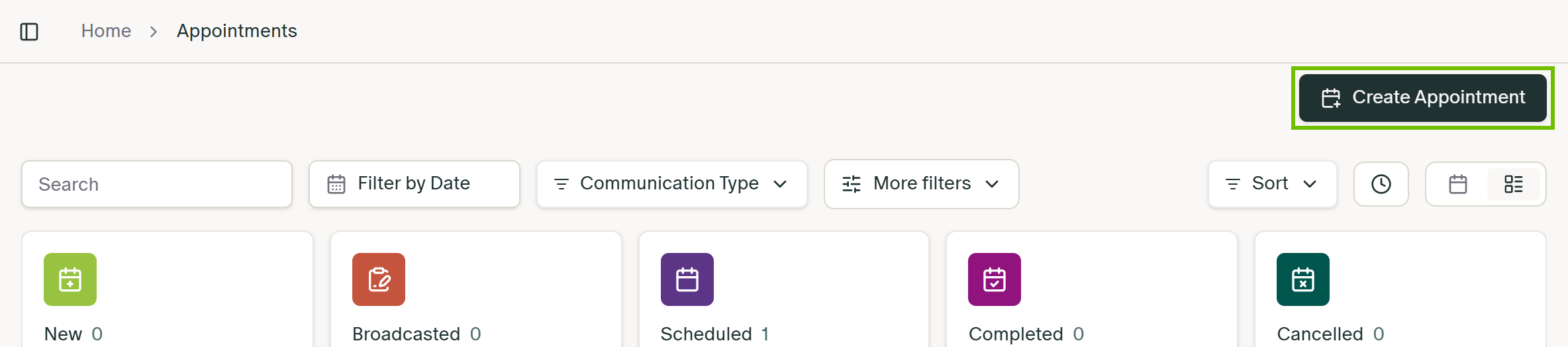
Open Appointments and select Create Appointment, at the top right of the list. In the calendar view, select New Appointment, or click the day you want.
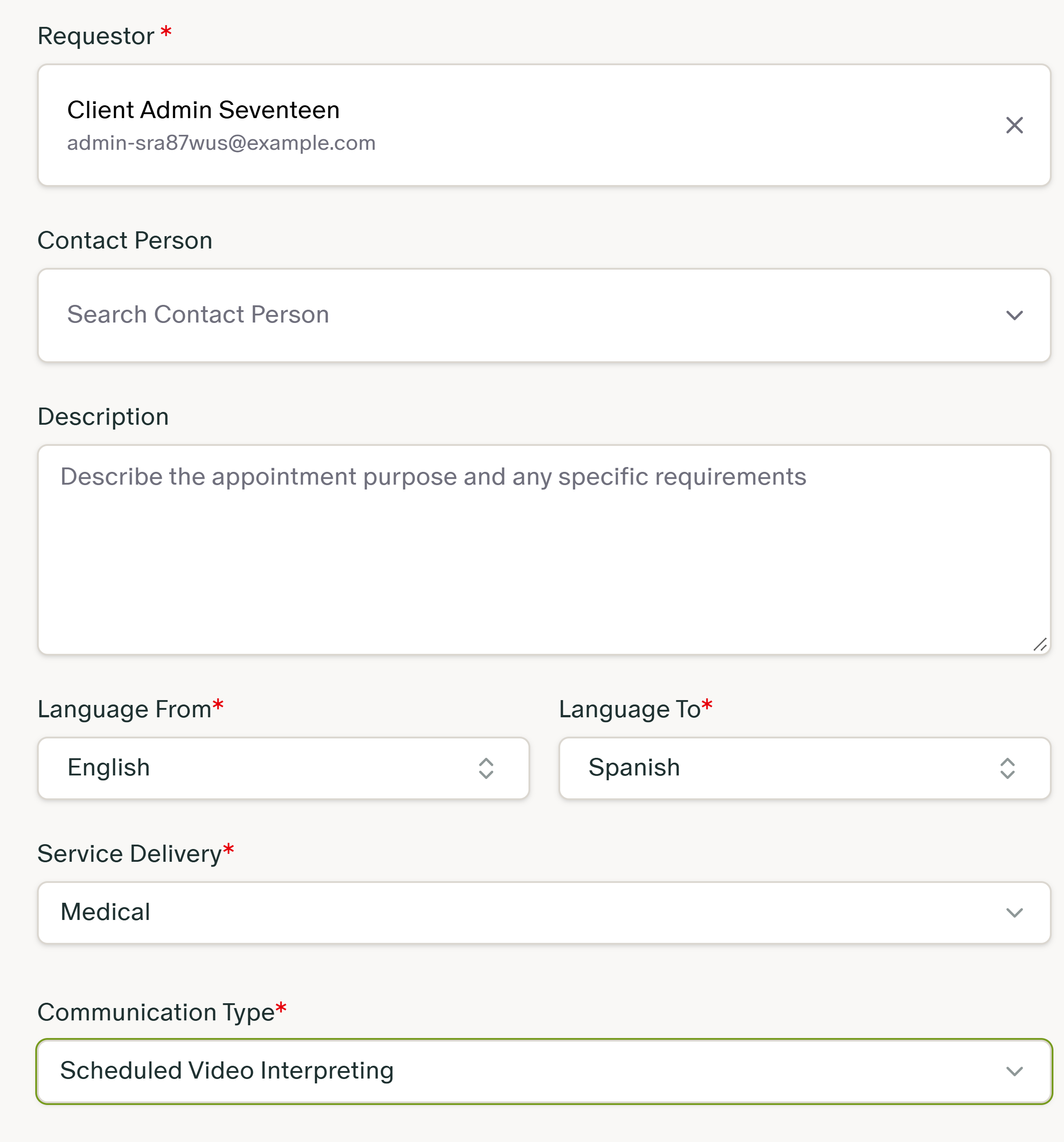
Check Requestor, the person the appointment is for. If you are a Requestor, it is you and cannot be changed. Admins can choose anyone in the organization. Org Users and Org Admins do not see this field: the appointment is booked with you as the requestor. Optionally choose a Contact Person and add a Description of what the appointment is for.
If your organization has its own questions, answer them under Additional details. Questions marked with an asterisk are required. If a Specialty choice is shown under Interpreter requirements, choose one.
For a sign language video appointment, answer Where is the deaf consumer?: choose Joining separately and select Mark on that participant under Participants, or In the room with the client. The appointment cannot be saved until you answer.
Choose Language From and Language To. Language From starts as English.
Choose Service Delivery: Legal, Medical, Government, Education or Community. It starts with the one you chose last time.
Choose Communication Type, how the interpreter will join: Scheduled Telephonic, Scheduled Video Interpreting, Onsite Consecutive, Onsite Simultaneous or Third Party Platform. You only see the types your organization uses. Tactile and Pro Tactile can only be booked on site: once you choose one of them, only Onsite Consecutive and Onsite Simultaneous are offered, and once you choose any other type, they are not offered as languages.
If you need to, set an Interpreter Gender Preference, choose a Preferred Interpreter from interpreters your organization has worked with in the last 12 months, and set the Number of interpreters, from 1 to 4.
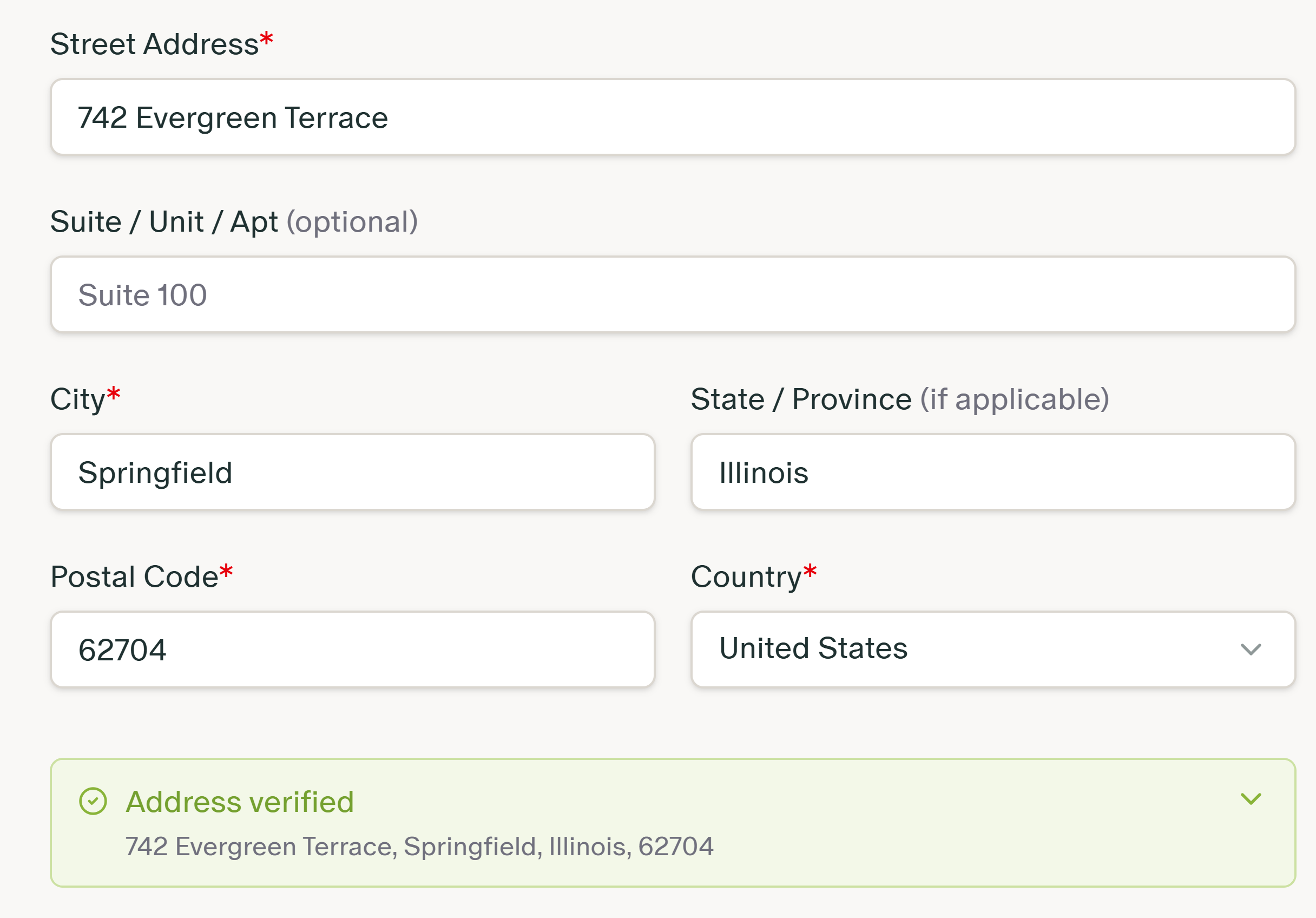
For an on-site appointment, check or enter the address and wait until it reads Address verified. If your organization has a saved location, it is filled in for you; select Enter address manually to use a different address. For a Third Party Platform appointment, paste the meeting invitation or link into Third Party Platform Invite/Link.
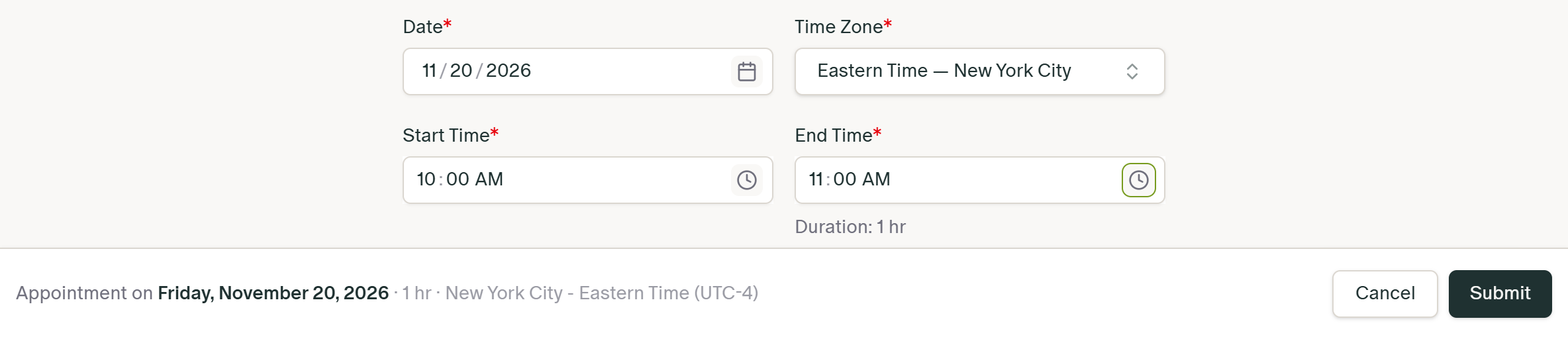
Choose the Date, Time Zone, Start Time and End Time. The line at the foot of the form shows the date, the length and the time zone, so check it before you submit. Optionally, under Participants, add people from your organization on Users, or invite someone by email on Guests.
Select Submit.
What you will see
A message reads "Appointment Created!" and the Appointments list opens, with the new appointment in it. Piedmont Global then offers it to interpreters who match.
Things that most often look wrong, and why:
Submit gives an error about the address. On-site appointments need a verified address. Check the street and city until it reads Address verified, or wait a moment if it says it is still verifying.
"All location fields are required for onsite appointments". A part of the address is missing, often the state or province. Fill it in, even though it says "(if applicable)".
"Start time cannot be in the past". The start time has passed in the time zone you chose. Check the time and the time zone.
"From Language cannot be the same as To Language". Choose two different languages.
The time looks wrong. Check Time Zone. It starts with your organization's time zone, which may not be where the appointment is.
I cannot change the Requestor. Requestors book for themselves. Ask your Admin, or Piedmont Global, to book for someone else.
The interpreter I want is not in the list. You can only choose interpreters your organization has worked with in the last 12 months, who match the languages and service. Choosing one, even with Require this interpreter, is a request: Piedmont Global tries to assign them.
I do not see Create Appointment. You may be in the calendar view, where the button is New Appointment. If neither appears, your organization has no scheduled services turned on, or your role cannot book from this form. Ask your Piedmont Global scheduler.
Submit is refused after I switched location. You switched to another location in a different browser tab after you opened the form. Close the form, check the location under your name, and start again.
I need the same appointment every week. Ask your Piedmont Global scheduler to set up a recurring series.
"Select where the deaf consumer will be before saving." Answer Where is the deaf consumer? under Participants.
"Tactile is only available for on-site appointments. Choose an on-site communication type or another language." (or Pro Tactile). Tactile and Pro Tactile are signed into the hands, so they can only be booked on site. Choose Onsite Consecutive or Onsite Simultaneous, or another language. You may see this on an older appointment that was booked for phone, video or Third Party Platform.
"... is only available for on-site appointments, and this account has no on-site service to book. Choose another language." Your organization has no on-site service set up. Choose another language, or ask your Admin.
"Bad Request" with "Tactile is only available for on-site appointments". The same cause: Tactile or Pro Tactile with a phone, video or Third Party Platform type. Choose an on-site type.
Available since March 2026. Updated in Release 10.19.2026. Org Admins since Release 11.12.2026. Updated in Release 11.17.2026.
Last updated 18 November 2026