
Who this is for and what it does
Requestors, Admins and Org Users use this when they need an interpreter now rather than at a booked time. The call runs in your web browser, by phone audio or by video, so you need a microphone, and a camera for video. Your organization decides which of the two are offered.
Before you start
Use a computer with a working microphone and speaker or headset, and a camera for video.
Allow Connexus to use your microphone, and your camera for video, when the browser asks.
Steps
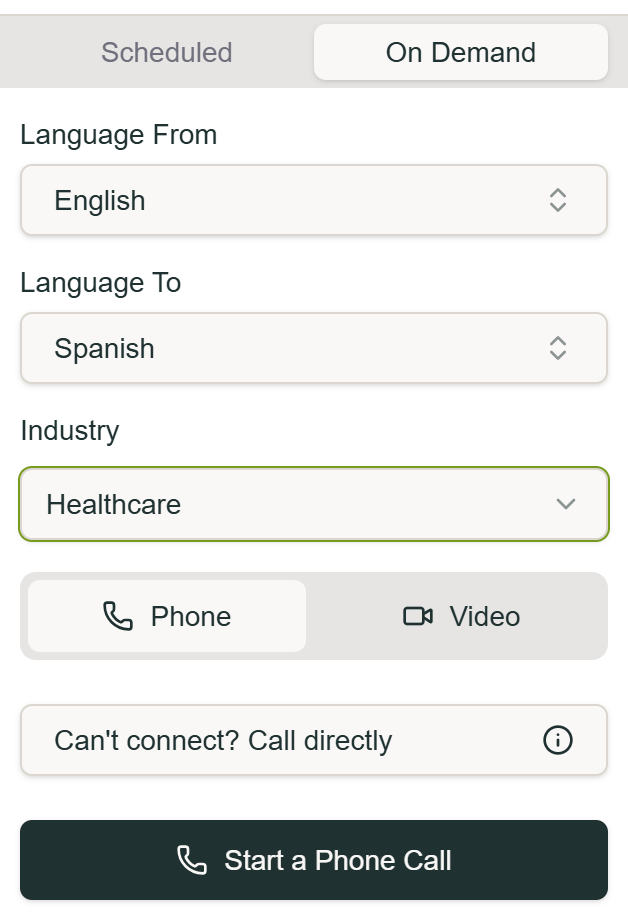
Select the call button at the bottom right of any Connexus page, then select the On Demand tab.
Choose Language From, which starts as English, and Language To. Only languages your organization can request are listed. Languages that can only be interpreted on site, such as Tactile and Pro Tactile, are not offered here.
Choose the Industry. If your organization uses them, you may also see Specialty and Gender Preference.
Choose Phone or Video.
If an Answer pre-call questions button is shown, select it and answer the questions; a Required label means the call cannot start until you answer. Select Save answers.
Select Start a Phone Call or Start a Video Call.
Wait while Connexus finds an interpreter. For a phone call, the call panel reads "Give us a sec..." until an interpreter answers. For a video call, a full screen opens with your camera preview and a Time in queue timer; keep that tab open, because closing it ends your request.
When the interpreter joins, talk as normal. To finish a phone call, select End Call. To finish a video call, select Leave Call, then End Call on the summary screen.
What you will see
When an interpreter accepts a video call, the waiting screen reads "An interpreter accepted and is joining…". If no interpreter is free after a few minutes, Connexus may connect you to a backup interpreting service automatically; you do not need to do anything. After a video call you are asked to rate the call quality and the interpreter.
To stop waiting, select Cancel on a phone request, or Cancel request on the video waiting screen.
Things that most often look wrong, and why:
The Start button stays greyed out. Choose both languages and the Industry, make sure the two languages are different, and answer any required pre-call questions. For a phone call, wait a moment for the phone connection to be ready.
"Service not available for this language". Your organization cannot request that language pair by this method. Try the other of Phone or Video, or ask your Admin.
Tactile or Pro Tactile is not in the language list. They are signed into the hands, so they can only be interpreted on site. Book an on-site appointment instead. See "Book an appointment".
"No Interpreters found" or "No Interpreters Available". No interpreter was free. Select Retry Search for a phone call, or start a new request, or book an appointment instead.
"Microphone Access Required" or "Camera or microphone access was denied". Your browser is blocking the device. Allow it from the icon in the browser's address bar, then select Refresh Page or try again.
The phone call will not connect from the browser. Select Can't connect? Call directly under the Phone choice. It shows the phone numbers to call and what to enter when you do.
There is no On Demand tab. Your organization has no on-demand services turned on.
"Your calling session has expired. Please reload the page to start the call." Reload the page and start the call again.
Available since March 2026. Updated in Release 11.16.2026.
Last updated 16 November 2026