
Who this is for and what it does
Anyone joining a Connexus call from a computer who wants the right headset, camera or speaker used.
Steps
Before a video call:
Join the call. The preview screen opens.
Under Camera, choose your camera.
Under Audio, choose your microphone and speak to test it.
Under Speaker, choose your speaker and select Test your speakers. You hear a test sound.
On a scheduled video call, select Join now. In the call, check Mic in the top bar and select it if it is red.
During a video call:
Select Devices in the top bar.
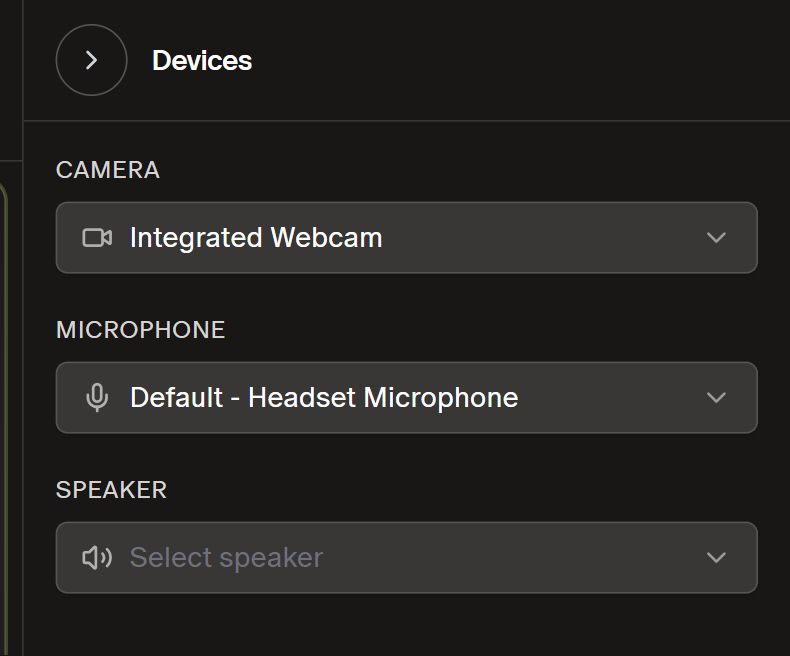
Choose a Camera, Microphone or Speaker.
On a phone call in your browser, use the Mic and Speaker buttons, before the call starts and during it. While you wait, speak to check your microphone and select Test speaker.
What you will see
Your choices apply to that call. Check your devices before each call.
Things that most often look wrong, and why:
"Device Access Required". Your browser is blocking the camera or microphone. Allow them in the browser, then select Try Again.
"No cameras available" or "No microphones available". Connexus cannot find one. Plug it in and check that no other app is using it.
"Couldn't switch your camera. Still using the previous one." The new device did not start. Try again, or choose another.
"Your camera is off" or "Your microphone is off". Turn it on with Camera or Mic.
Available since Release 09.21.2026. Phone call audio check since Release 09.01.2026.
Last updated 21 October 2026