
Who this is for and what it does
Admins use this to keep their organization's Connexus users up to date: correct a name or phone number, change a title, or remove someone who has left.
Before you start
You cannot change a user's email address or role. To give someone a different role or email, contact Piedmont Global with Submit a request.
If the Users page shows a Source column and the person is marked Enterprise, your organization's company directory manages them. Change or remove them there; Connexus updates when the directory syncs.
Steps
Edit a user
Select Users in the left menu.
On the person's row, open the menu and select View User. A panel opens with their details.
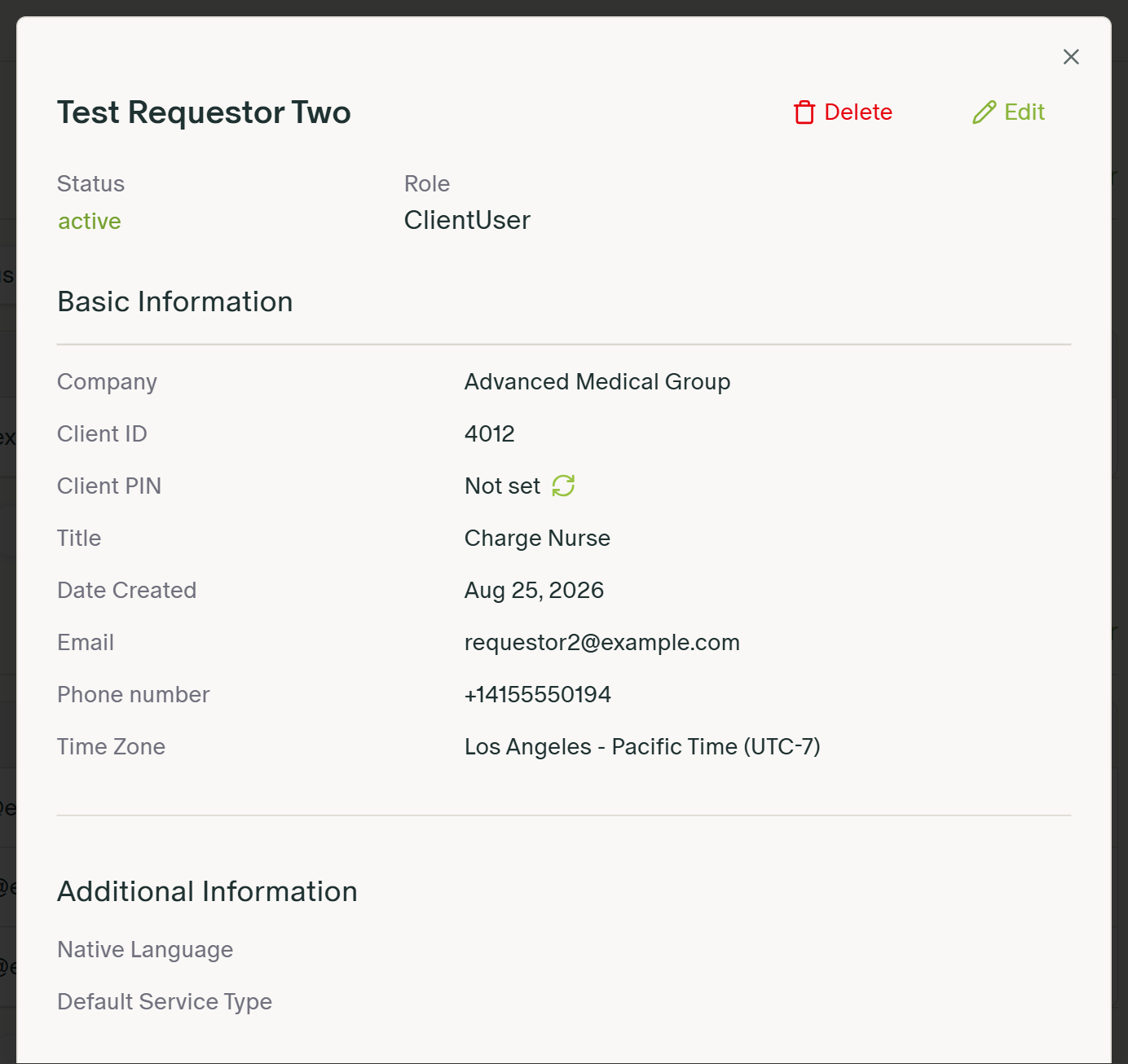
Select Edit.
Change what you need: First Name, Last Name, Phone, User Title, Native Language or Default Service Type. The phone must be a US number such as +15551234567.
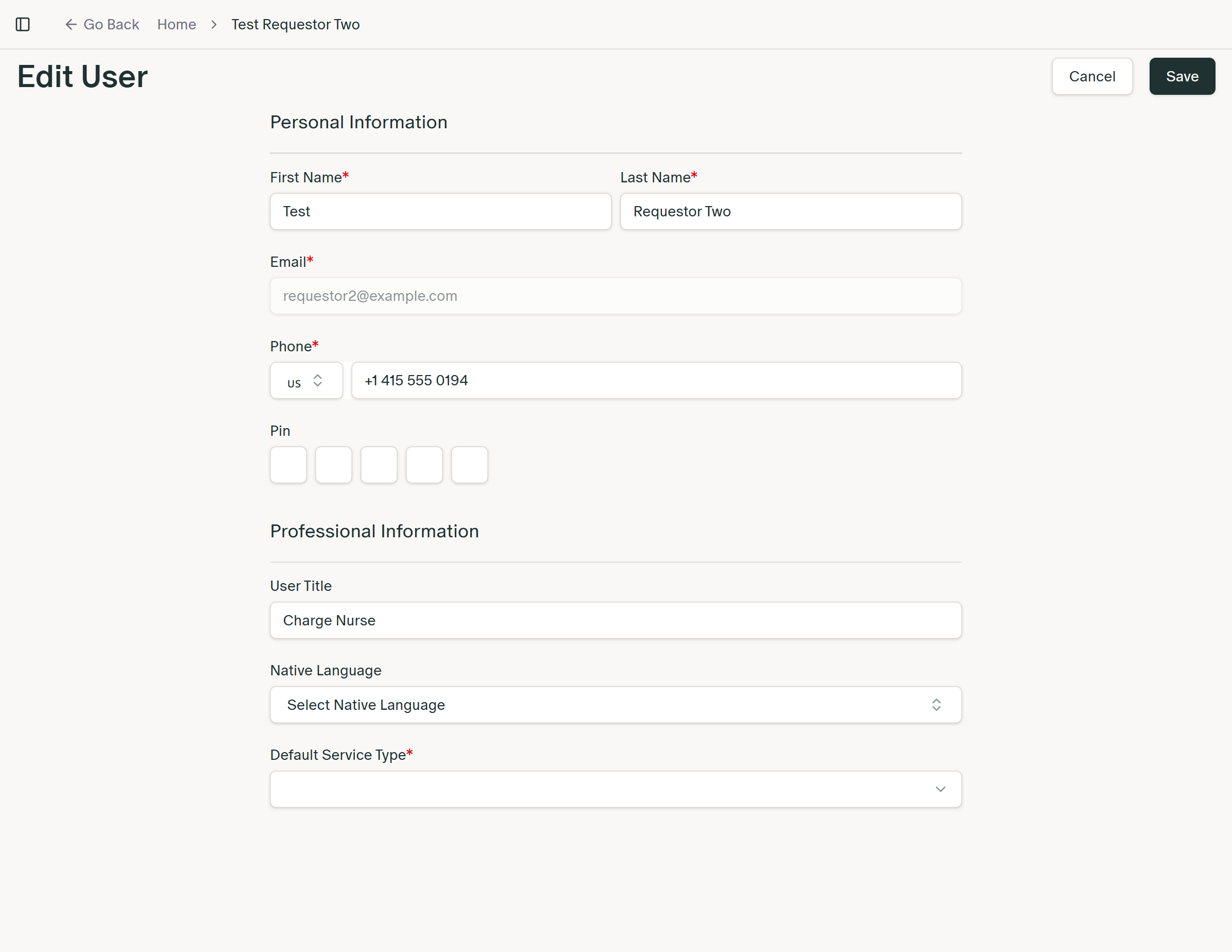
Select Save.
Remove a user
Select Users, then View User on the person's row.
Select Delete, then confirm. You can also choose Delete User directly from the menu on the row.
What you will see
After saving, a message confirms the user was updated and you return to the Users page. After deleting, the person's status shows as Deleted, they can no longer sign in, and their row has no further actions. A deleted user cannot be restored; if they need access again, add them as a new user with Add Administrator or Add Requestor.
Things that most often look wrong, and why:
The Email field is greyed out. Email addresses cannot be changed. Contact Piedmont Global with Submit a request.
First Name and Last Name are greyed out, with an Enterprise Managed note. Your company directory manages this person. Change the name there.
There is no Client PIN column. Users' PINs are not shown to administrators. To change a user's PIN, contact Piedmont Global with Submit a request.
Available since March 2026. Updated in Release 10.19.2026.
Last updated 19 October 2026