
Who this is for and what it does
Anyone at a client organization who calls Connexus by phone to reach an interpreter. Each number tells Connexus who is calling, either with your Client ID and Client PIN, or with a shared PIN for your organization.
Steps
Open your profile menu and select My Profile.
Under Basic Information, find your Client ID and Client PIN.
Under IVR Numbers, find the number to call. Select View authentication details to see whether you need your Client ID and PIN, or a Shared PIN.
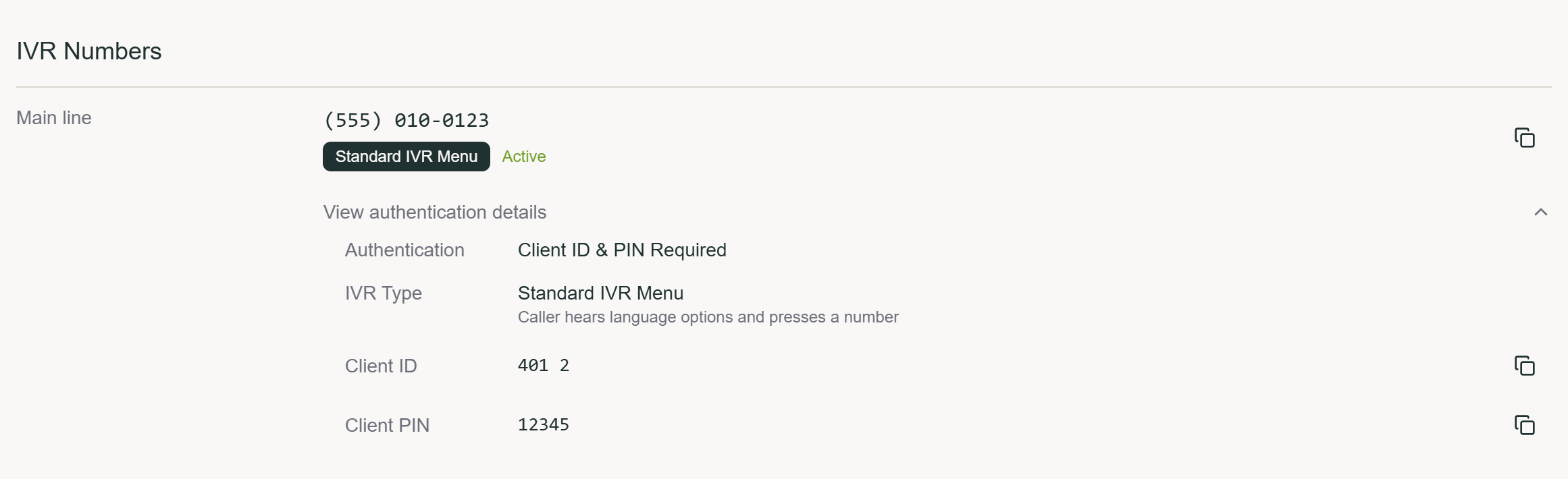
Use the copy button beside a number or code to copy it.
From the call button
While requesting an on-demand phone call, select Can't connect? Call directly. It lists your organization's numbers and step-by-step instructions: call the number, enter what it asks for, then say the language pair and the industry.
What you will see
If your organization has no numbers of its own, the profile shows a Support Line with a note to use it with your Client ID and PIN.
Your organization may choose to hide individual PINs. Then no Client PIN shows; ask your organization's administrator how to call. Org Admins and Org Users do not see a Client PIN on My Profile.
To get a new PIN, contact Piedmont Global with Submit a request.
Things that most often look wrong, and why:
Client PIN says Not set, or is missing. Your organization hides PINs, or none has been set. Ask your organization's administrator.
I see no Client ID. If you book for several organizations, your profile has no Client ID or IVR Numbers. Use Can't connect? Call directly on the call button for the numbers and steps.
Available since March 2026. Hidden PINs since Release 09.21.2026. Updated in Release 10.19.2026.
Last updated 19 October 2026