
Who this is for and what it does
Requestors, Admins and Org Users who are on a booked video appointment use this to join it. The call runs in your web browser, in a new tab, with the interpreter and anyone else invited.
Before you start
Use a computer with a camera, a microphone, and a speaker or headset. Both the camera and the microphone must be available to join.
You must be on the appointment's participant list. Being at the same organization is not enough.
The call opens 5 minutes before the start time unless your organization has set a different number of minutes.
Steps
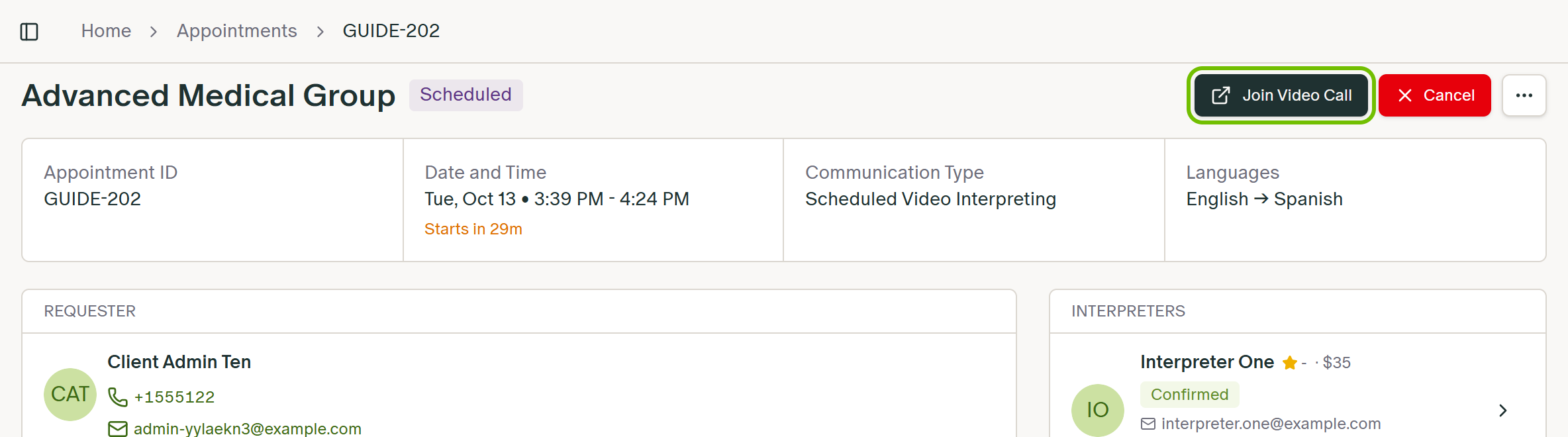
Open Appointments and select the appointment.
Select Join Video Call at the top of its page. The call opens in a new browser tab.
When the browser asks, allow Connexus to use your camera and microphone.
On the Ready to join? screen, check your picture inside the framing guide. Under the device settings choose your Camera, Audio and Speaker, and use Test your microphone and Test your speakers if you want to check them.
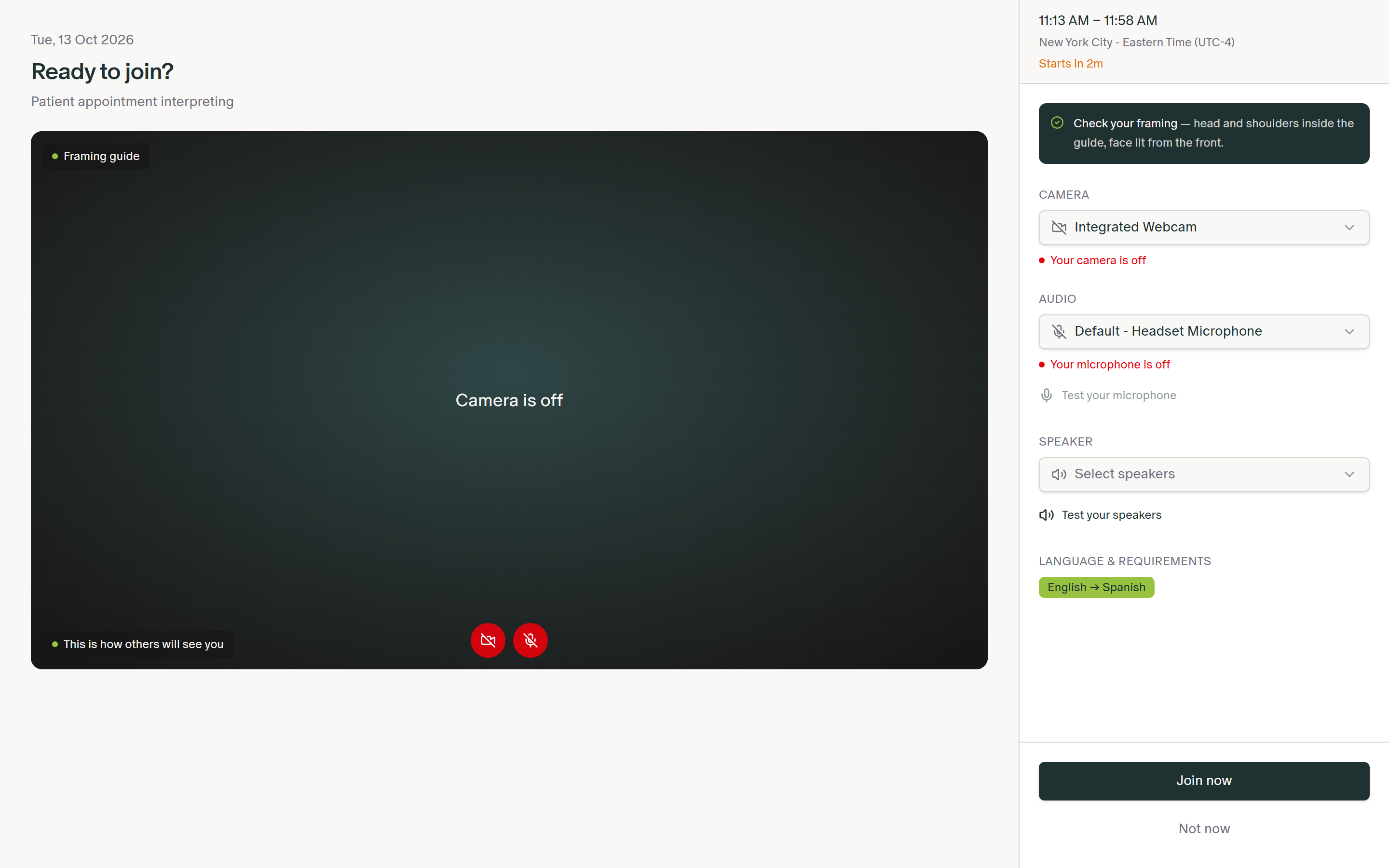
Select Join now. If it is too early, the screen tells you when the call opens and Join now becomes available at that time by itself.
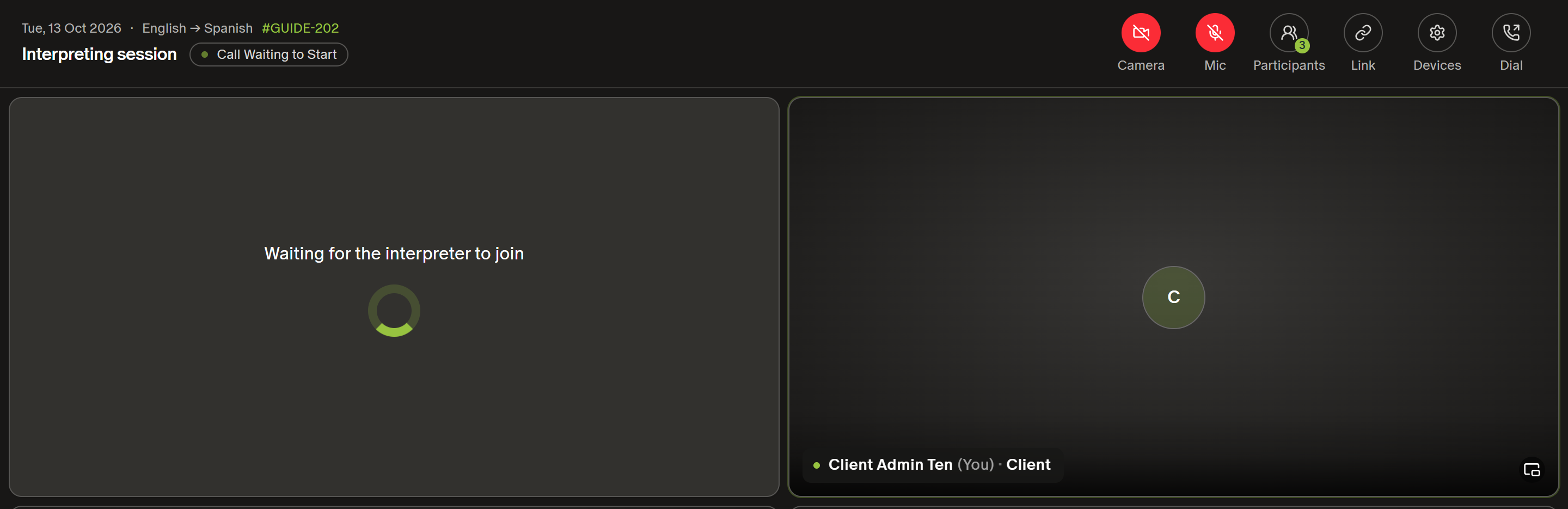
Talk as normal once the interpreter joins. On a sign language call, the Deaf consumer and the interpreter fill the two main panes and everyone else shows in a strip above them. Use Camera and Mic at the top of the call to turn them on or off, and Devices to switch them.
To finish, select Leave Call and confirm. Rate the call, then select End Call if you booked the appointment, or Leave otherwise.
What you will see
Until the interpreter joins, the call reads Call Waiting to Start and you may hear hold music; a short beep plays when the call begins. After you leave, you can rate the call quality and, if you booked it, the interpreter. Rejoin call on that screen takes you back in.
On a sign language call, you and your guests see the Deaf consumer and the interpreter who is interpreting, never the rest of the interpreting team. When interpreters change, you hear a chime and "Your interpreter is changing" covers the interpreter's picture, naming who will continue the session when it can.
To invite someone without a Connexus account, open the appointment, find Guest Join Link and select Copy link; if no link has been made yet, select Generate link first. You can also select Link during the call. Anyone with the link can join as a guest from when the call opens until its scheduled end time. A call can have up to 10 participants.
Things that most often look wrong, and why:
There is no Join Video Call button. The appointment is not a video appointment, is not yet Scheduled, has finished, or is booked on another video platform.
"This call opens at" a time. You are early. Leave the screen open; Join now becomes available when the call opens.
"You do not have access to this call." You are not on the appointment's participant list. Ask the person who booked it to add you.
"Device Access Required". Your browser is blocking the camera or microphone, or another app is using them. Allow them from the icon in the browser's address bar, close other video apps, and select Try Again.
"Are you still there?". You have been alone in the call for 5 minutes. The call ends in 10 seconds unless you select I'm still here or someone joins.
"This call link has expired." The appointment's time is over. Book a new appointment if you still need an interpreter.
Available since March 2026. Updated in Release 10.19.2026. Updated in Release 11.18.2026.
Last updated 18 November 2026