
Who this is for and what it does
Anyone at a client organization checking past interpreter calls, for example how long a call lasted or who interpreted. Requestors and Org Users see the calls they requested; Client Admins see every call at the organization.
Steps
Select Call Logs in the sidebar.
Choose On Demand or Scheduled.
Narrow the list with Search, Filter by Date, Communication Type (Video or Audio) and Status (Completed or Cancelled). Select Filters to choose the languages; Client Admins can also choose a Requestor.
Select a row to open the call's details, or select the Appointment ID to open the appointment in a new tab.
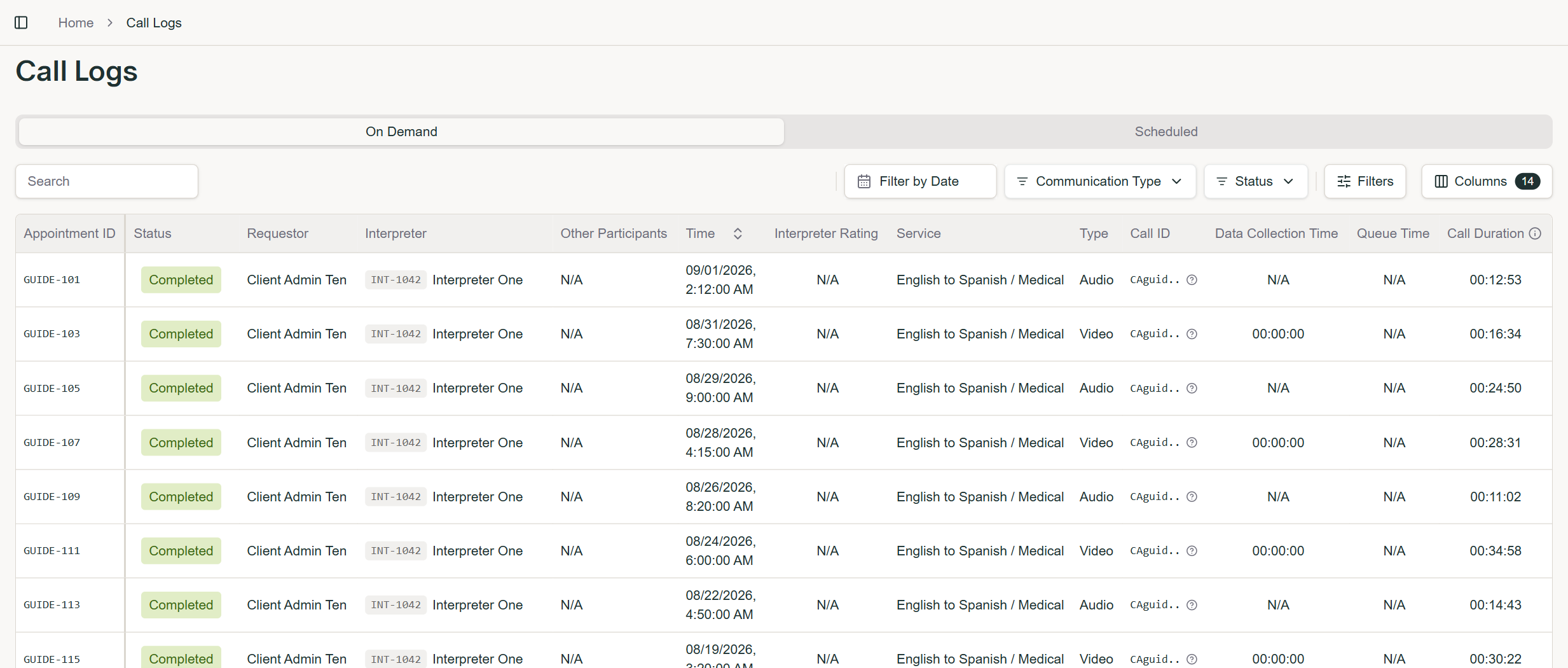
What you will see
Each call shows its Status, the interpreter, the time, the service and type, and the call duration. Choose which columns show with the column button at the right of the filters.
Cancelled scheduled video and phone appointments are listed on the Scheduled tab, even when the call never took place. Choose Cancelled under Status to see only those. On a cancelled row, Scheduled Duration shows the booked length and Call Duration shows 00:00:00.
On-site and Third Party Platform appointments are not listed here.
Things that most often look wrong, and why:
"No on-demand calls found" or "No scheduled calls found". No calls match your filters. Widen the date range or clear the filters.
A call I expected is missing. Check the tab: on-demand and scheduled calls are listed separately.
Available since March 2026. Cancelled scheduled video and phone appointments listed since Release 11.12.2026.
Last updated 12 November 2026