
Who this is for and what it does
Requestors, Admins, Org Admins and Org Users all see recurring appointments when Piedmont Global's scheduling team has booked the same appointment for you on several dates, for example a weekly session for the same patient or client. This article explains how those appointments appear in Connexus and what you can do with them. Booking a series, and changing one, is done by the Piedmont Global scheduling team, so if you need a new series, or a change that applies to every date, contact your Piedmont Global scheduler.
Before you start
- You need a Requestor, Admin, Org Admin or Org User sign-in for the client the appointments belong to.
- A series has to exist already. If you are expecting one and see nothing, check with your Piedmont Global scheduler that it has been booked.
Steps
-
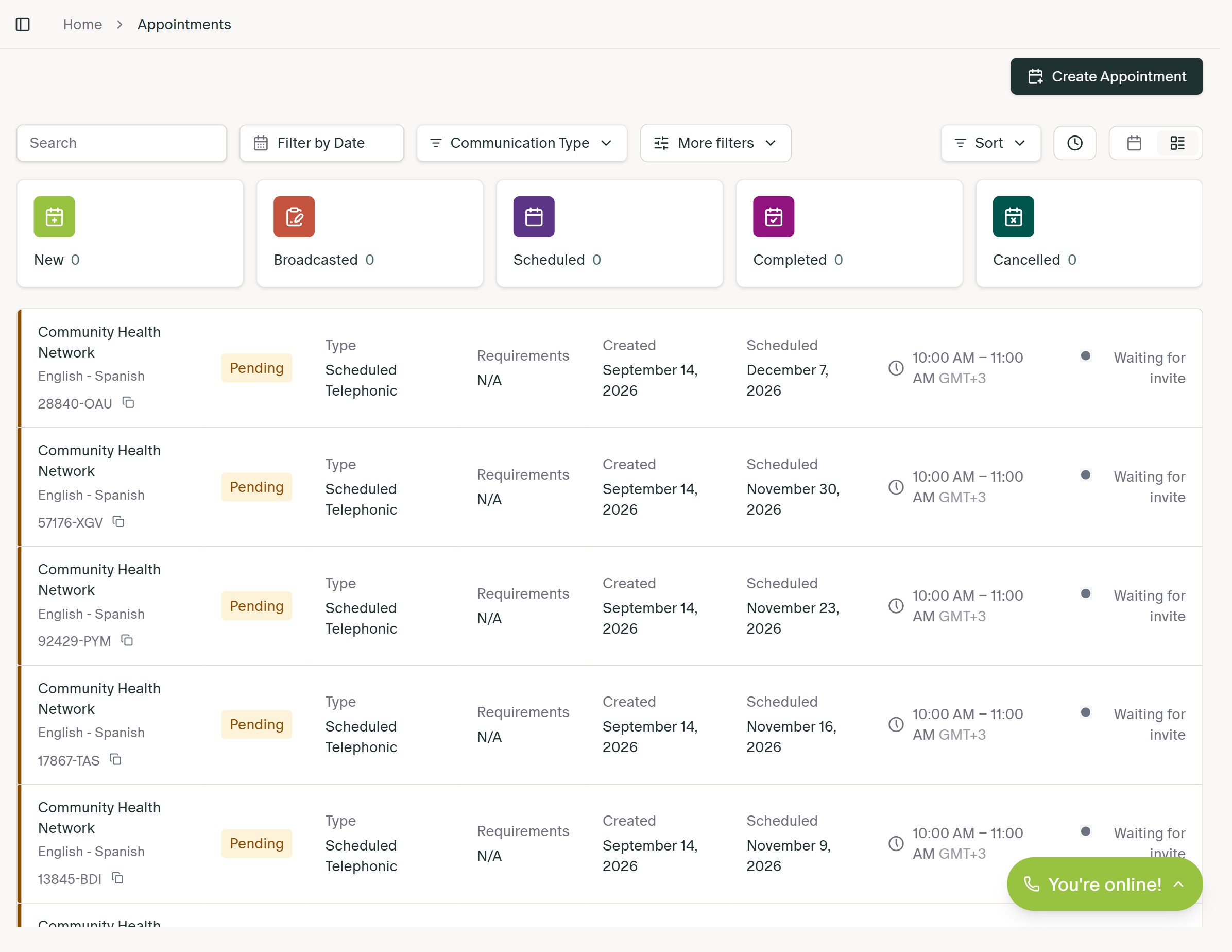
Open Appointments. Each date in a series appears as its own row, with its own date, time and status, in the same list as your other appointments. Rows from one series share the same client, language, type and time, so they are easiest to spot by their matching times.
-
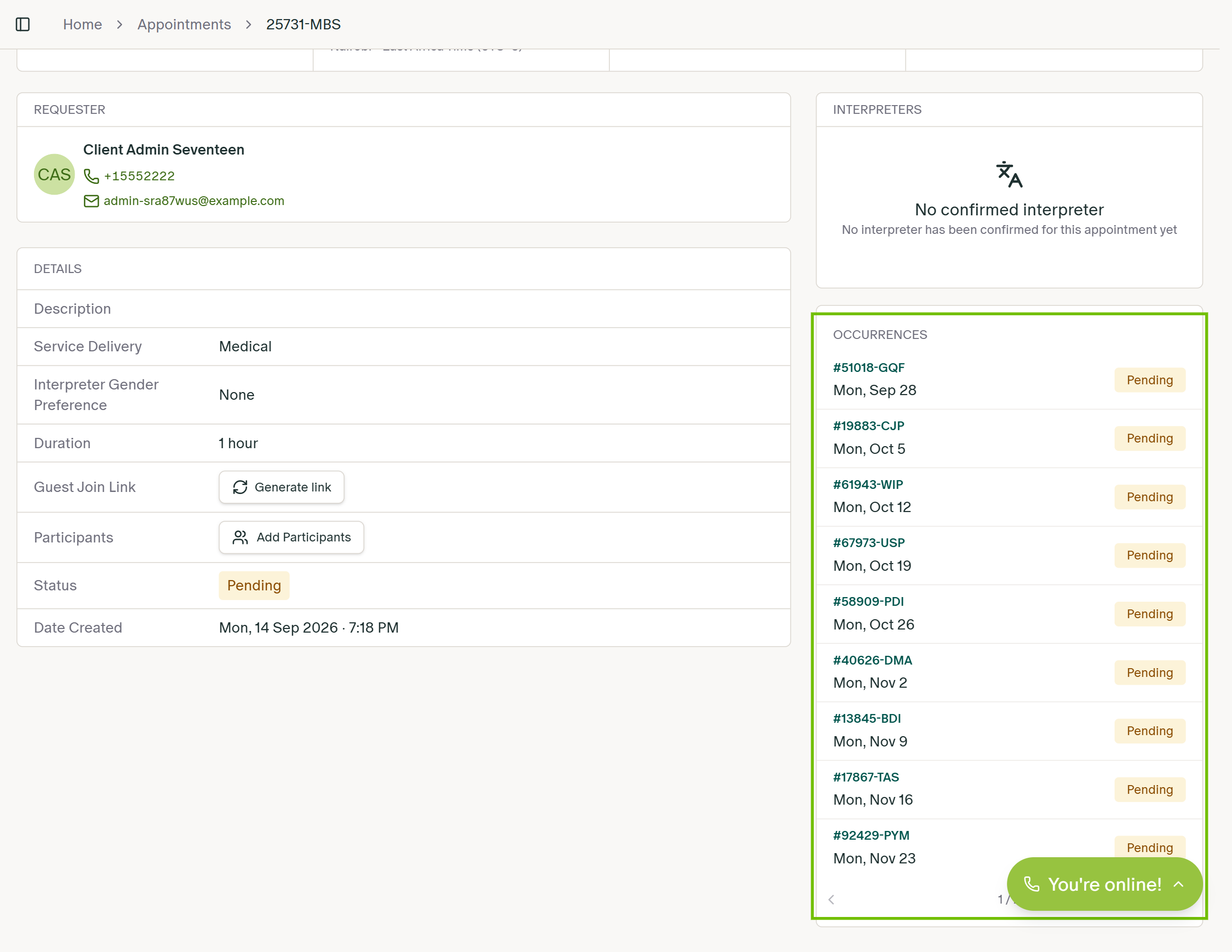
Open one of them. Under Occurrences, near the foot of the appointment page, you will find the other dates in the series.
-
Each entry under Occurrences shows the appointment's reference and its status. The panel holds ten to a page and lists the other dates, so the page you are on leaves out the date you are viewing. Use the arrows to see the rest, and select an entry to open that date.
-
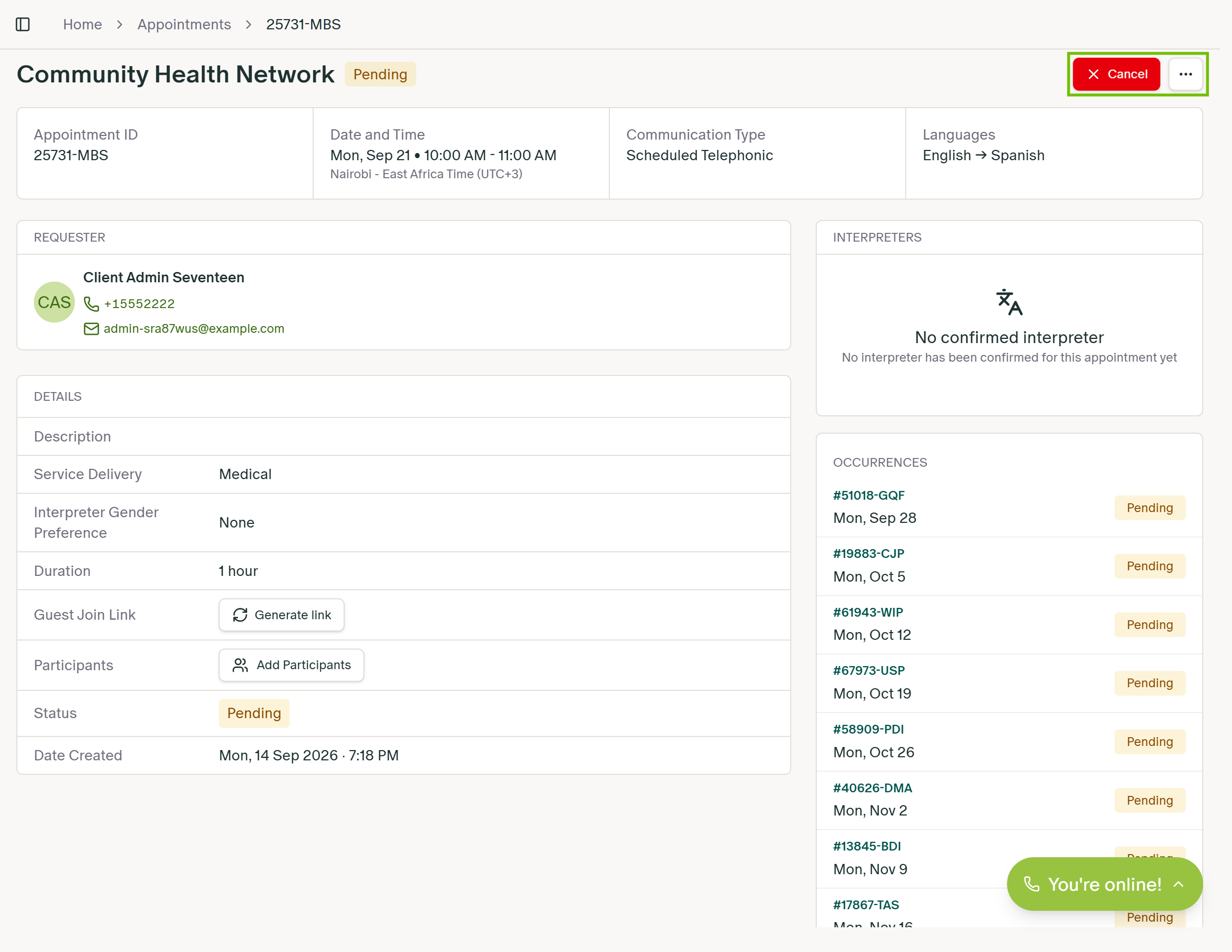
To cancel one date, open that appointment and select Cancel. Only that date is cancelled, and the rest of the series is unchanged. Cancel is not available once an appointment has been completed, cancelled or marked unfulfilled.
-
To change the time or the details, to change every date at once, or to add or remove dates, contact your Piedmont Global scheduler.
What you will see
Every date in the series is a normal appointment. Each is offered to interpreters separately, so the interpreter can differ from one date to the next unless a preferred interpreter was requested, and each date carries its own status. You receive the usual confirmation and reminder messages for each date. For a phone or video appointment you can add participants and share a guest join link on any single date, the same as for a one-off appointment.
Things that most often look wrong, and why:
- There is no Edit button on the appointment. Changing an appointment's time or details is done by the Piedmont Global scheduling team, not from your sign-in, whatever the appointment's status. Contact your scheduler.
- Several dates show Pending, and the interpreter section says no interpreter has been confirmed. Something in your account's setup has to be resolved by Piedmont Global before interpreters can be invited, and the page does not say what. Your scheduler can tell you and resolve it.
- The times look wrong by a few hours. Times are shown in the time zone named next to the date on the appointment page, and in the zone selected at the top of the list. Check that zone before assuming a booking error.
- A date is missing from the series. Weekend dates and holidays may have been skipped when the series was booked. Ask your scheduler to add a date if one is missing.
- The series has more dates than the Occurrences panel shows. The panel holds ten at a time and leaves out the date you are already on. Use the arrows to see the rest.
Available since Release 07.02.2026
Last updated 13 October 2026