
Who this is for and what it does
Everyone at a client organization who signs in to Connexus with a password: Requestors, Admins, Org Admins and Org Users. You set your first password when you accept your invitation, and you can change it at any time.
Before you start
If you sign in through your company's login page (single sign-on), you have no Connexus password. Your organization's IT team manages it.
Admins cannot set or reset another person's password. Each person changes their own.
Steps
Change your password while signed in
Select your name at the top of the left menu. If the menu is collapsed, expand it first.
Select Manage Account. (My Profile opens your Connexus details, such as your name and phone, not your password.)
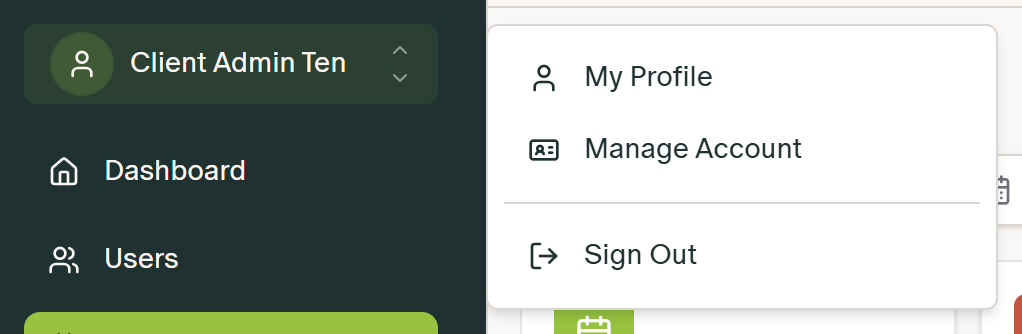
In the window that opens, go to the password section and follow the steps to set a new password.
Reset a forgotten password
Go to connexus.piedmontglobal.com and enter your email address.
Select the password reset link on the sign-in screen and follow the steps. You are sent a code to confirm it is you.
Set your new password and sign in.
What you will see
Your new password works from your next sign-in. The window tells you if the password you chose does not meet the requirements; choose another one.
Things that most often look wrong, and why:
There is no password section in Manage Account. Your organization uses single sign-on. Change your password with your organization.
I did not receive the reset code. Check your spam or junk folder and that you entered the email address your invitation went to. If it still does not arrive, contact Piedmont Global with Submit a request.
I never set a password. Accept your Connexus invitation email first. If you cannot find it, ask your Admin to send it again.
Available since March 2026
Last updated 13 October 2026