
Who this is for and what it does
Everyone at a client organization who uses Connexus: Requestors, Admins, Org Admins and Org Users. Signing in opens Connexus with the pages your role allows.
Before you start
You need an account. When an Admin adds you, Connexus may email you "Welcome to Connexus!", with your username and an Access Connexus button, if Piedmont Global has turned on welcome emails for your account. If you have no email, ask your organization's Connexus Admin to send the invitation.
If your organization signs in through its own company login (single sign-on), you use that login and have no separate Connexus password.
Steps
Open your web browser and go to connexus.piedmontglobal.com.
Under Email address, enter the address your invitation was sent to and select Continue.
Complete the sign-in steps shown, such as entering your password or a code sent to you. If your organization uses single sign-on, you are taken to your company's login page.
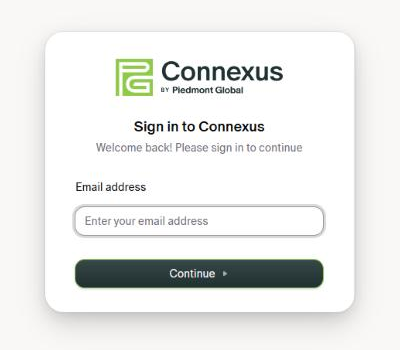
Connexus opens. If you followed a link to a particular page, such as an appointment, you land on that page.
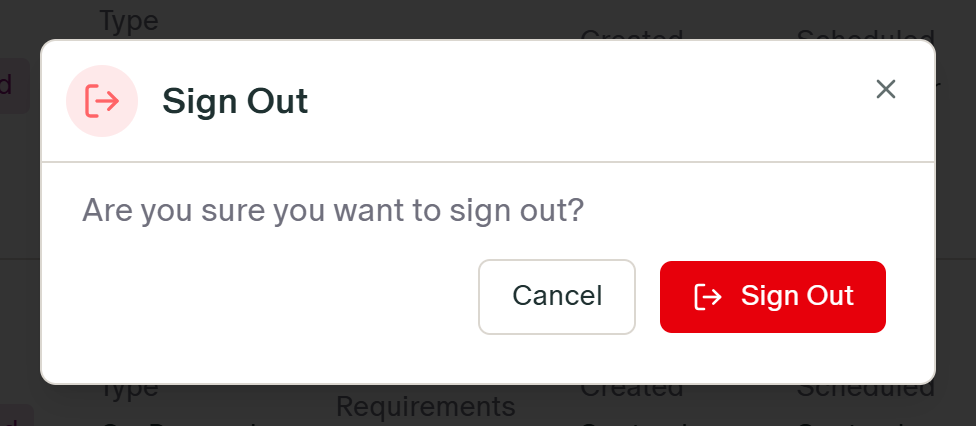
To sign out, select Log out at the bottom of the left menu, or select your name at the top of the menu and then Sign Out. Confirm with Sign Out.
What you will see
After signing in you see your Connexus home page and the left menu. After signing out you are back on the sign-in screen.
Things that most often look wrong, and why:
"Your session has expired for security purposes. Please log in again." Connexus signed you out to protect your account. Sign in again; you land on the home page rather than the page you had open.
"No access yet". Your account exists but has no role yet. Contact your organization's Connexus Admin, or select Sign Out and try later.
"Your organization has no client accounts assigned yet". You are an organization member and no client account is linked to you yet. Contact Piedmont Global with Submit a request.
I forgot my password. Use the password reset link on the sign-in screen. See "Set or update your password".
I never received my invitation. Check your spam or junk folder, then ask your Admin to send it again.
"Access Denied" with "You don't have permission to access this feature." You opened a page your role cannot see. You stay signed in; go back or ask your Admin for access.
Available since March 2026. Updated in Release 11.20.2026.
Last updated 20 November 2026