
Who this is for and what it does
Anyone with a Connexus account at a client organization who wants to know where appointment updates appear.
Steps
Select the bell at the top of the sidebar. A number on the bell shows how many notifications you have not read.
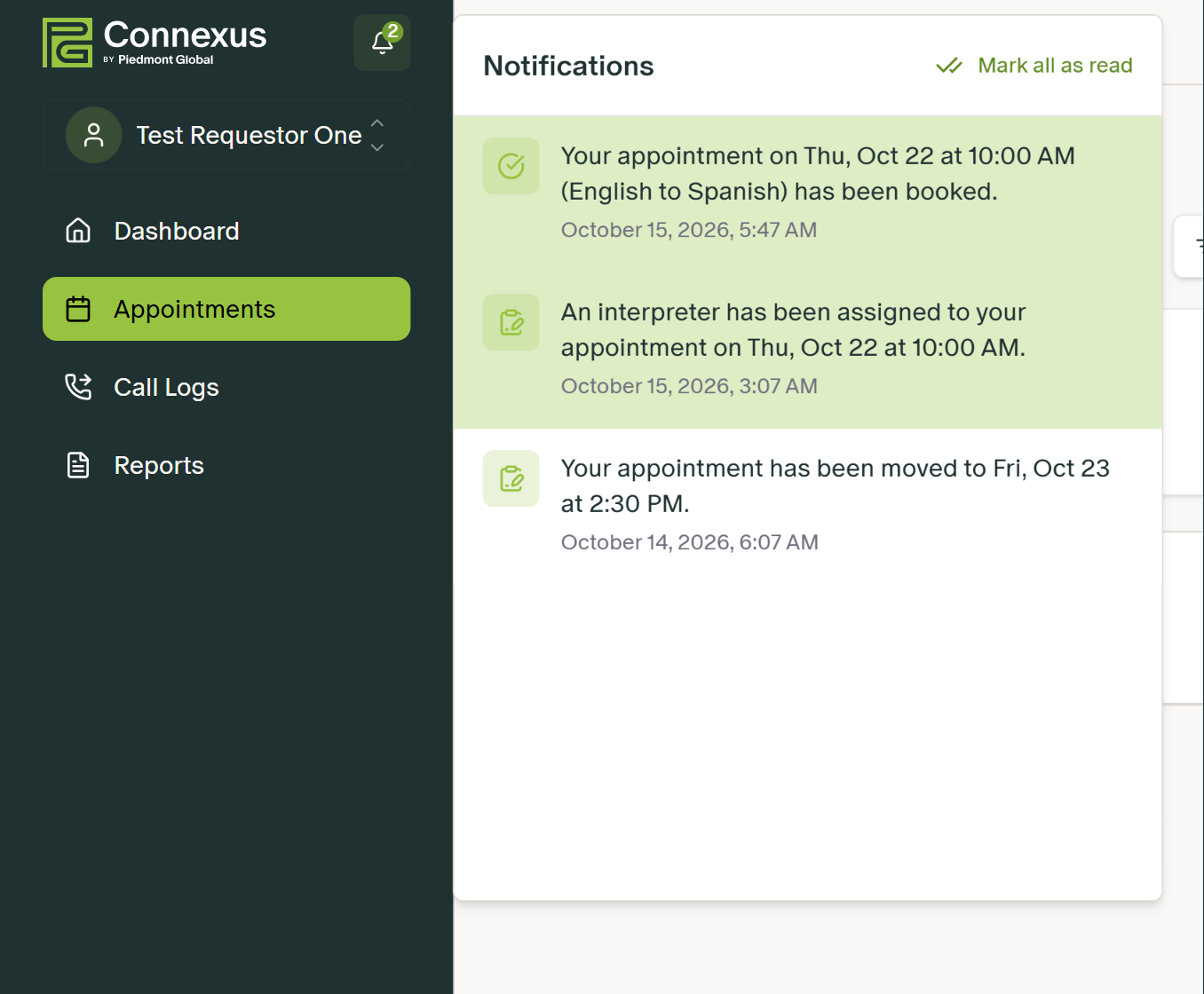
Select a notification to open its appointment. It is marked as read.
To clear the count, select Mark all as read.
What you will see
In Connexus: the bell lists your notifications, newest first. While Connexus is open, a new one can also appear as a short message on screen. If you allow notifications when your browser asks, they can also appear on your computer.
By email: the person who booked gets an email when an interpreter is assigned, when the appointment is cancelled, when a Piedmont Global scheduler reschedules it, and when its details change. A booking receipt is emailed only for an appointment that starts within 24 hours; later bookings show in the bell. Before an on-site appointment, the person who booked gets a reminder the day before. Guests on a scheduled phone or video appointment get an email invitation, and an email if it is cancelled.
On screen when you act: for example "Appointment Created!" after you book.
To turn off optional emails such as session reminders, see Choose which emails Connexus sends you. To change which emails your organization receives, contact Piedmont Global.
Things that most often look wrong, and why:
"No notifications". You are all caught up.
I do not get notifications on my computer. Your browser is blocking them. Allow notifications for Connexus in your browser's settings.
I am not getting emails. Check your spam folder and add noreply@connexus.piedmontglobal.com to your safe senders, then contact Piedmont Global.
Available since March 2026
Last updated 2 November 2026