
Who this is for and what it does
Anyone who books or checks appointments for places in more than one time zone, or who is not in the same zone as the appointment.
Steps
Book in the right time zone
On Create Appointment, check Time Zone before you enter the times. It starts as your organization's time zone.
Enter the Date, Start Time and End Time in that zone.
Check the line at the foot of the form. It shows the date, the length and the time zone.
See every appointment in one time zone
On Appointments, select the clock button next to Sort.
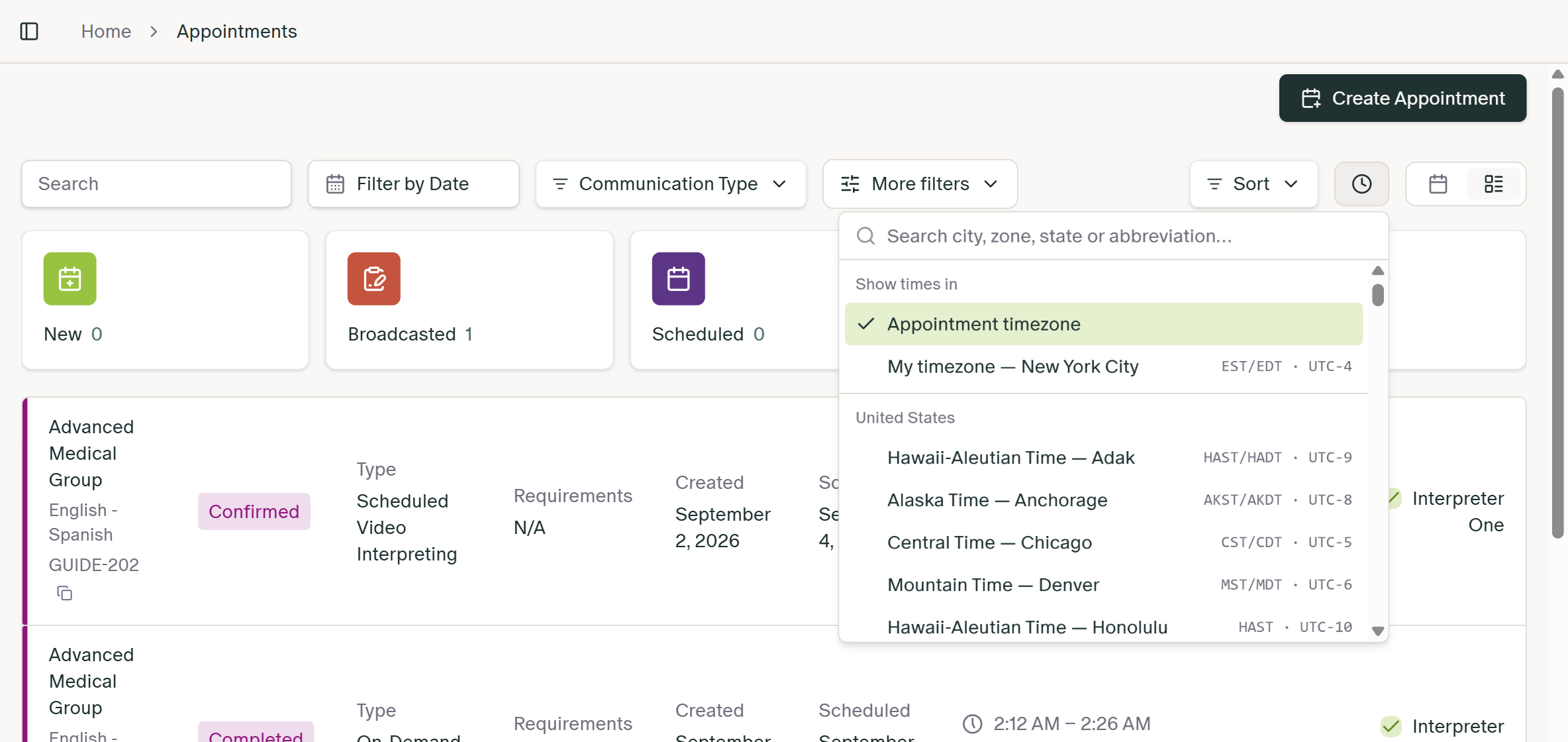
Choose My timezone, or search for a city or zone. Choose Appointment timezone to go back to each appointment's own zone.
What you will see
On the list, each time shows a short zone name; point at it for the full name. When you show times in one zone, appointments booked in another zone have an extra line saying they are converted.
On an appointment's page, Date and Time is always in the zone it was booked in. If you chose another zone with the clock button, a Your Time line shows the same time in that zone.
The calendar view has its own Viewing in choice on wider screens.
Your choice is kept in the browser you made it in. On another computer, choose again.
Things that most often look wrong, and why:
The time looks a few hours off. It is shown in the appointment's own time zone. Check the zone name next to the time, or use the clock button.
"Start time cannot be in the past". The time has passed in the time zone you chose. Check Time Zone.
Available since March 2026. Display options since Release 07.27.2026.
Last updated 14 October 2026