
Who this is for and what it does
Requestors, Admins, Org Admins and Org Users use the Appointments page to find an appointment, check its status and see who the interpreter is. Admins and Org Admins see all of their organization's appointments; Requestors and Org Users see the ones they requested or take part in. If you work for more than one organization account, first choose the account under Switch client accounts in your profile menu; the page shows that account's appointments.
Before you start
You are signed in to Connexus.
Steps
Select Appointments in the left menu. The list opens on today's appointments, ten to a page. Use the arrows at the foot to move between pages, or choose 10, 25, 50, 100 or 200 under Rows per page. The foot also shows how many appointments match, for example "24 appointments". To see other days, use Filter by Date (step 3).
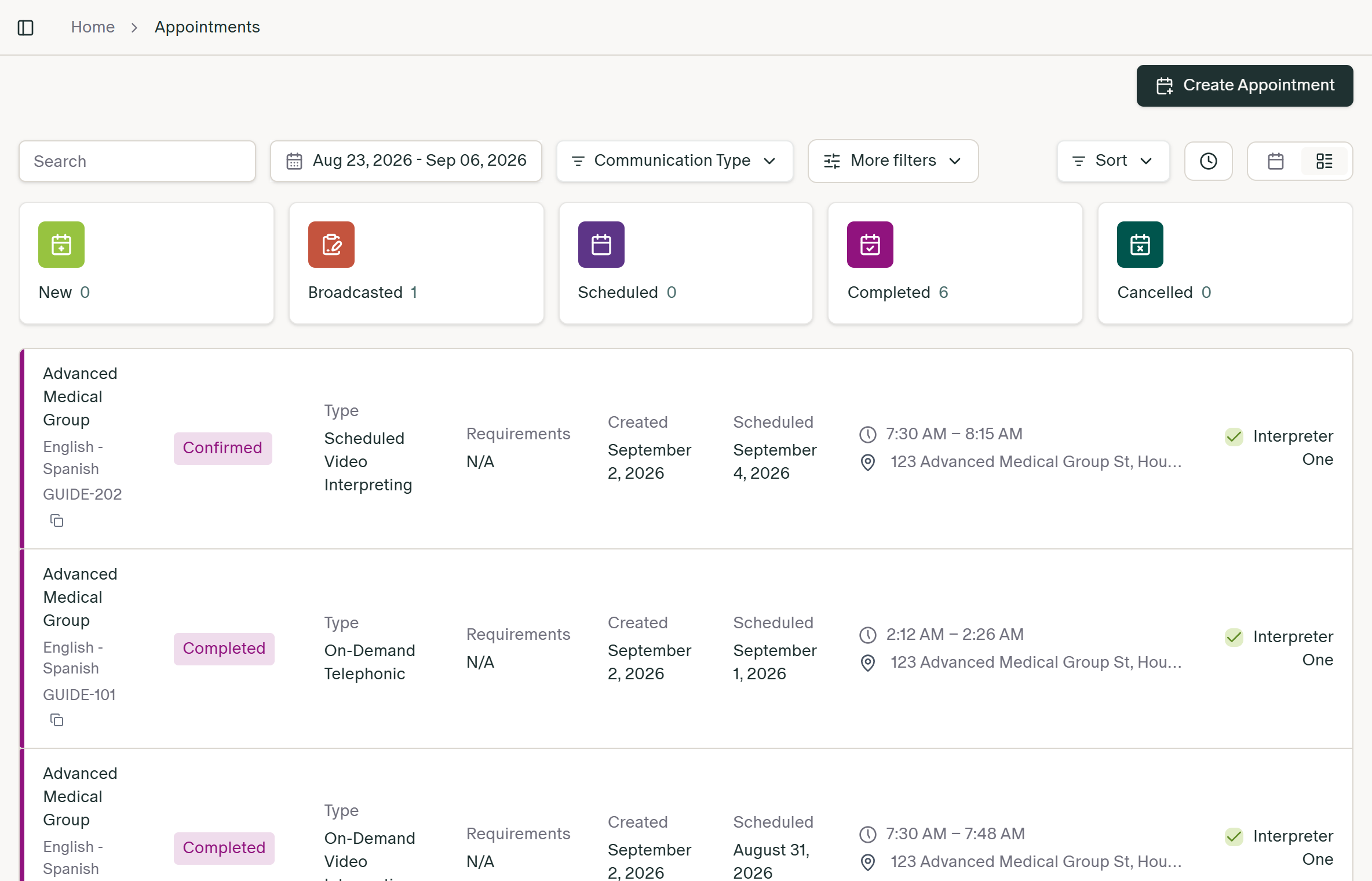
To see one status only, select its card above the list: New, Broadcasted, Scheduled, Completed or Cancelled. Select it again to show everything.
To narrow the list, type in Search, choose dates with Filter by Date, pick a Communication Type, or open More filters for the languages. Admins can also filter by Requester. Each filter you apply shows as a label under the filters; remove one by selecting it, or select Clear all.
To change the order, open Sort and choose Soonest scheduled first, Latest scheduled first, Newest created first or Oldest created first.
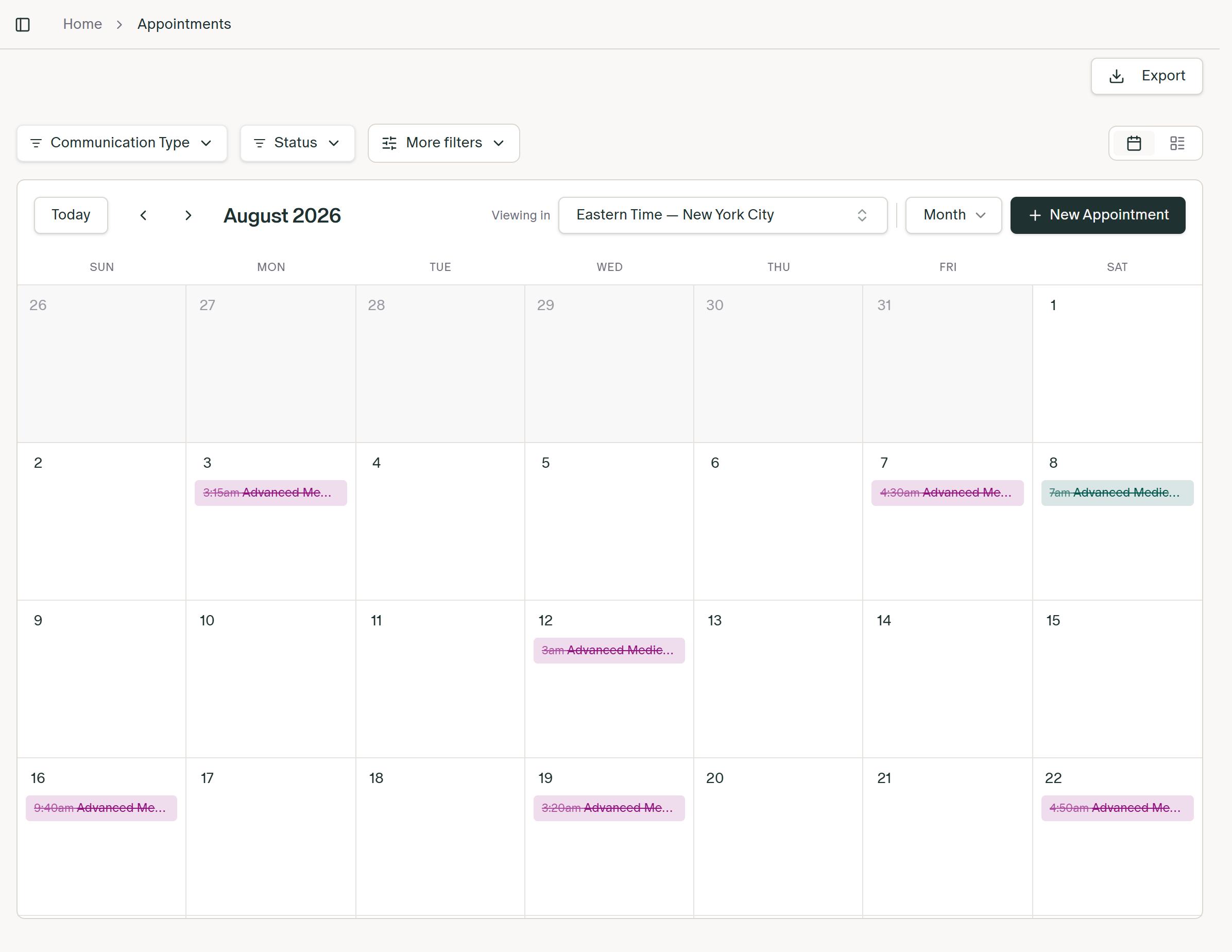
To see the appointments on a calendar, select the calendar button beside the list button. Choose Month, Week or Day, and use the arrows or Today to move around.
Select an appointment, in the list or on the calendar, to open its page.
What you will see
Each appointment in the list shows the organization, the two languages, the appointment ID, its status, how the interpreter will join, the date and time, and the interpreter. Before an interpreter is assigned it reads Waiting for invite. When an appointment is about to start, or is happening now, the list says so.
On a phone, the filters fold behind a Filters button. With a keyboard, Tab to the client name in a row and press Enter to open the appointment.
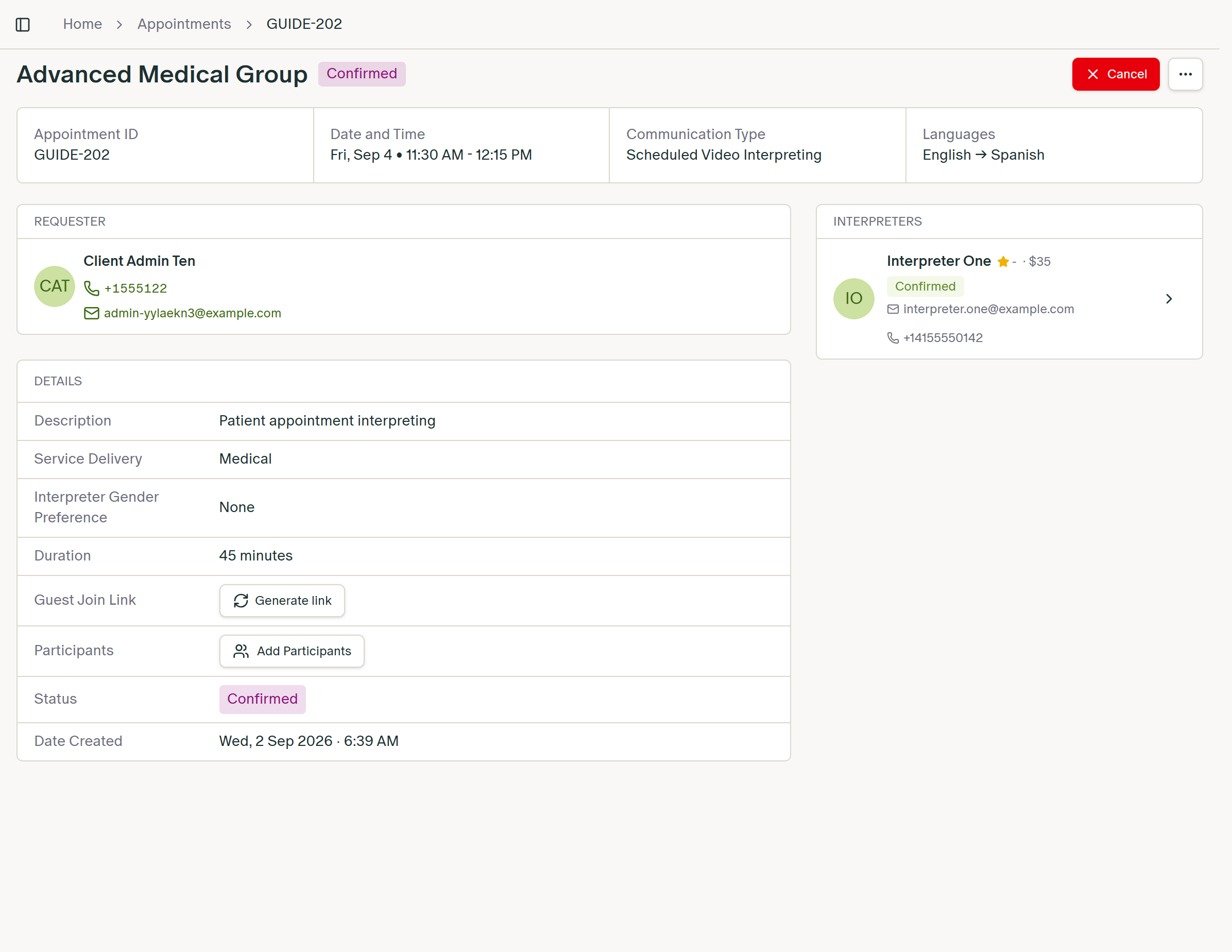
An appointment's page shows the Appointment ID, the Date and Time, the Communication Type and the Languages at the top, then the requester, the contact person if there is one, the details of the booking and the confirmed interpreter. For a phone or video appointment that is scheduled and has not ended, Requestors, Admins and Org Users see a button to join the call at the top of the page.
Things that most often look wrong, and why:
The list reads "No results." The list starts on today, and a filter or search may be hiding the rest. Choose a wider range with Filter by Date, select Clear all under the filters, or clear the search.
I cannot see an appointment a colleague booked. Requestors and Org Users see only appointments they requested or take part in. Ask an Admin, or ask to be added as a participant.
A status card is selected and I cannot see other appointments. Select the card again to show all statuses.
The time looks wrong. The list shows each appointment in the time zone it was booked in. Use the clock button beside Sort to show times in another time zone.
The interpreter says "Waiting for invite". No interpreter has accepted yet. Piedmont Global is finding one.
I want a copy of my appointments. Switch to the calendar and use Export, then Export as PDF or Export as CSV. Export is not available in the list view.
"Appointment Not Found" or "Access Denied" when I open an appointment. It belongs to another account, was removed, or your role cannot see it. Select Back to Appointments. If you work for more than one account, check the one chosen under Switch client accounts.
Available since March 2026. Updated in Release 10.19.2026.
Last updated 19 October 2026