
Who this is for and what it does
Requestors and Org Users who are new to Connexus, Piedmont Global's platform for booking interpreters and joining interpreted calls. Org Users work across several locations of one organization. To see what your role can and cannot do, read What each role can do in your organization.
Steps
Sign in. Go to connexus.piedmontglobal.com and enter the email address your invitation was sent to. You cannot create your own account: someone at your organization or Piedmont Global adds you first. See Sign in to Connexus and Set or update your password. If your organization uses single sign-on, see Sign in with your organization's single sign-on.
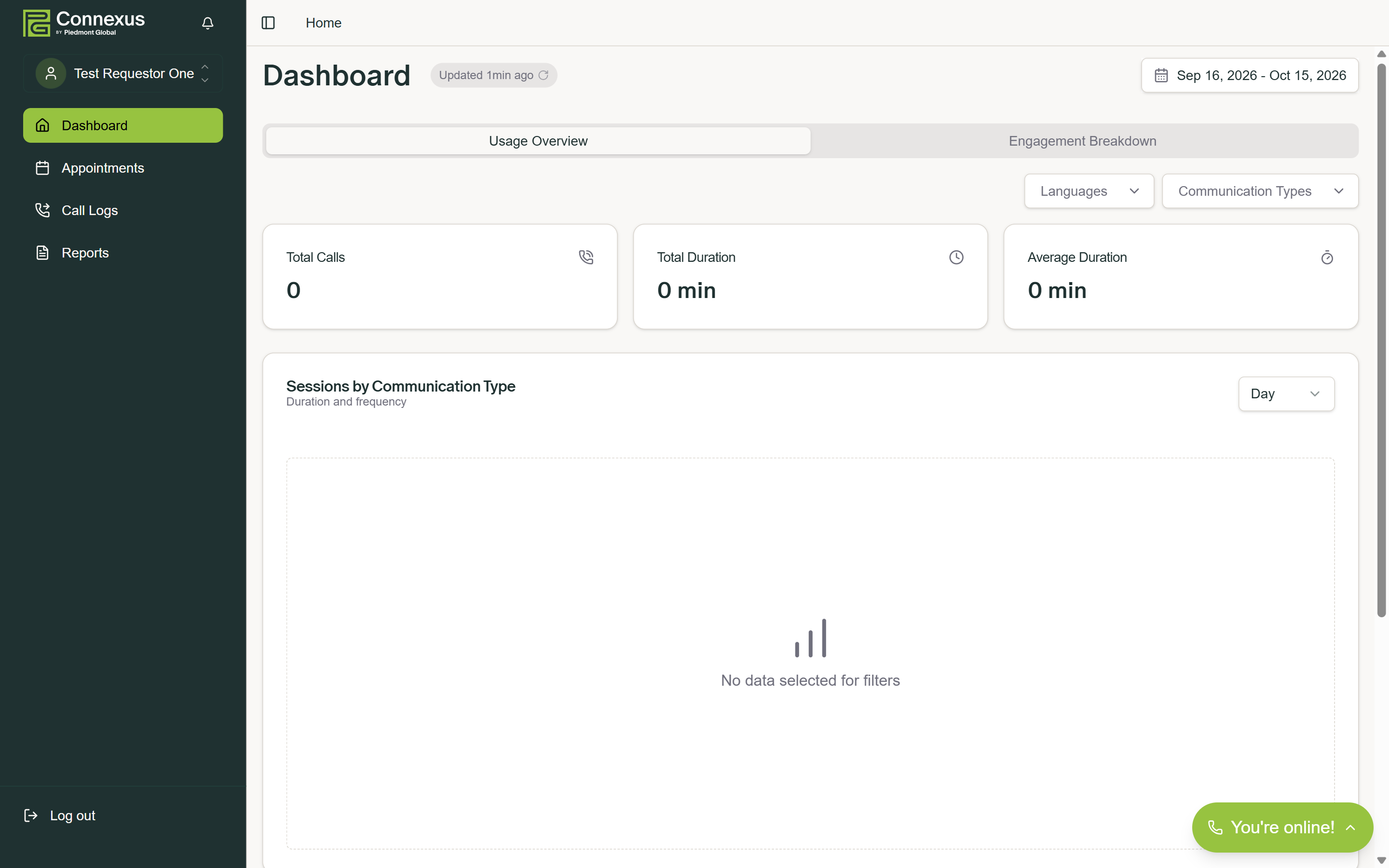
Find your way around. The sidebar on the left holds Dashboard, Appointments, Call Logs and Reports. Org Users start at their first location and can switch to another at any time: see Switch between your organization's locations.
Book an interpreter for a later time. Open Appointments and select Create Appointment. See Book an appointment. On the same form you may also:
answer your organization's own questions: Answer the extra questions on the booking form
ask for an interpreter you have worked with: Ask for a specific interpreter
check the time zone: Times and time zones on an appointment
Or call for an interpreter now. Open the call button at the bottom right and select On Demand. See Call for an on-demand interpreter and, if your organization asks questions before each call, Answer pre-call questions before an on-demand call. Requestors who call by phone will find their phone number and PIN in Find your phone number and PIN.
Join the call. For a scheduled video appointment, open it and select Join Video Call: see Join a scheduled video call. To bring someone else in, see Add a guest to a video call. If you drop out, see Rejoin a call after it drops.
Keep track of your appointments. See View your appointments. To change one, see Change or reschedule an appointment; to cancel, see Cancel an appointment, and when a charge still applies. Connexus also tells you when something changes: see The messages Connexus sends you.
Get a record of your calls. Open Reports and select Call Basics Reports. See Run a Call Basics report.
What you will see
Once you are signed in, Connexus shows the sidebar on the left and the call button at the bottom right.
Things that most often look wrong, and why:
I am still waiting for an interpreter. See Why am I still waiting for an interpreter?
The language I need is not in the list. See Why is a language missing when I book?
Available since March 2026
Last updated 15 October 2026